How Can We Help?
What is the Client Manager?
The Client Manager is a tool for managing the clients you interact with using the MLS system. Adding your sphere of influence to the Client Manager is beneficial as it allows you to quickly send your clients listings from the MLS system, auto-fill forms with your clients’ information, opt-in to email alerts for when clients favorite properties, etc. Additionally, once you have added a client to your Client Manager, you can then send a client Connection Invitation, which is a connection that must be made in order to send your clients automatic Listing Alert emails (Click here for more information about Client Connections).
How do I Import Contacts Into my Client Manager?
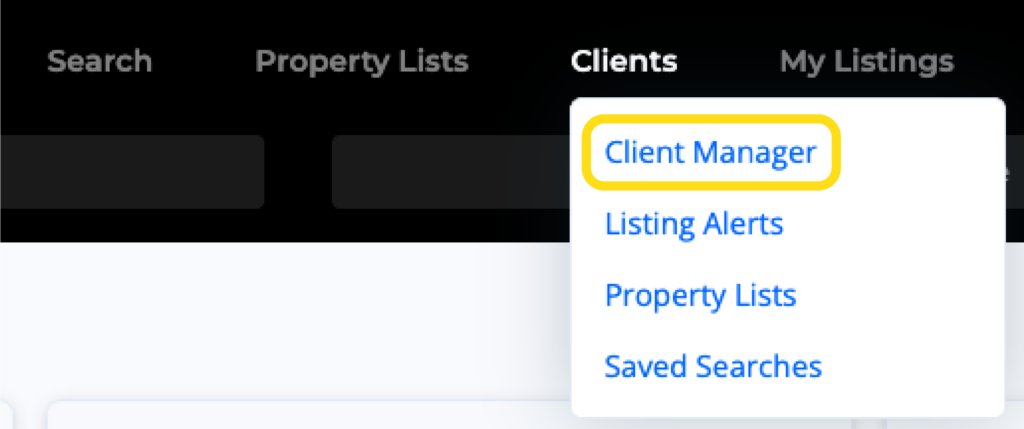
1. Click on the Clients option from the main navigation menu in the MLS, then select Client Manager.
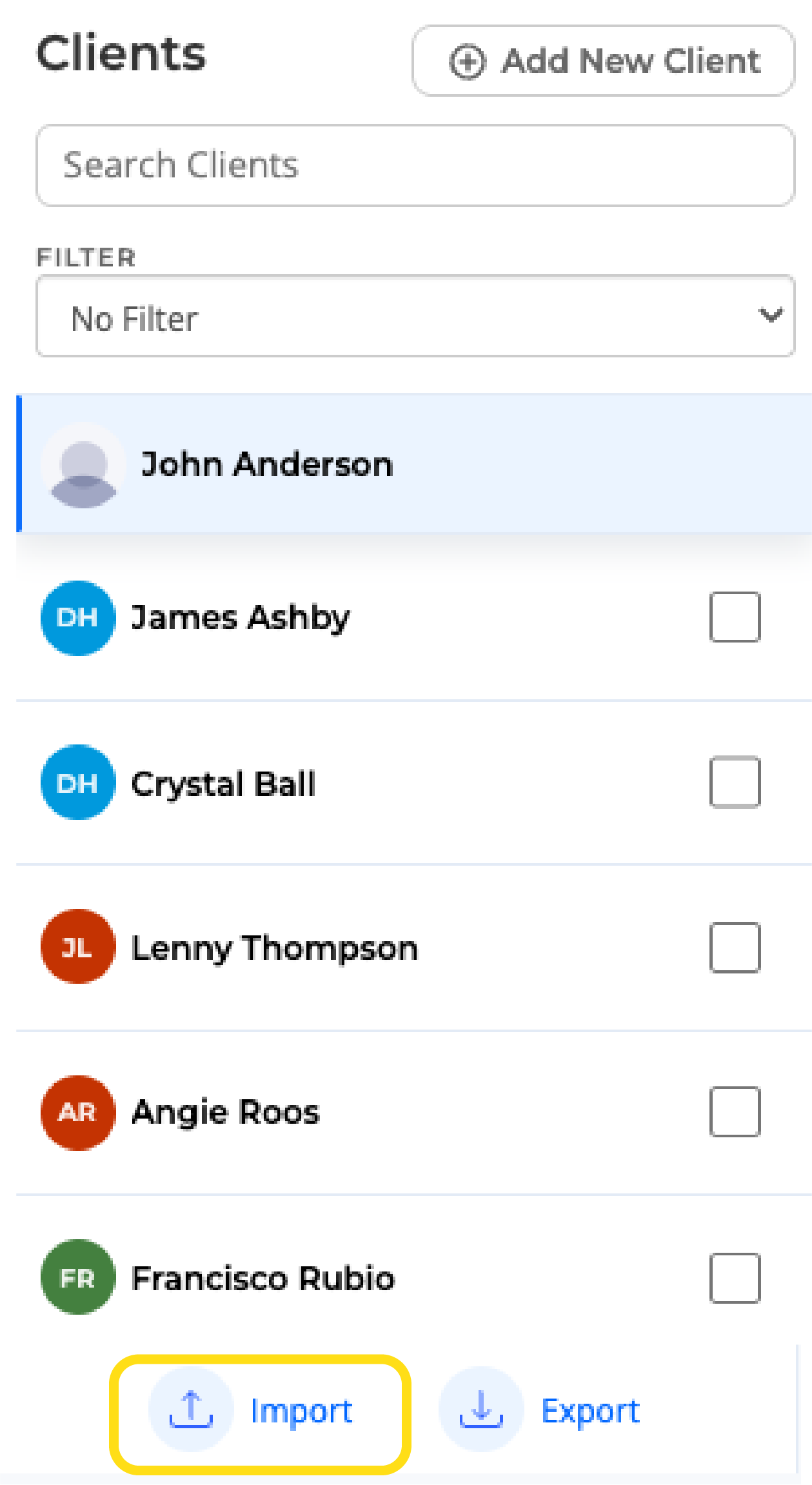
2. Select Import at the bottom left.
3. Create CSV File: A comma-separated values (CSV) file is required to import your contacts into the MLS. The email providers or sources listed below all have features which allow you to export your contacts from that provider into a CSV file, which you can then save on your computer.
Tip: If you need assistance with exporting your contacts, please click here for instructions on how to export your contacts into a CSV file from one of the sources listed below, or click here if you do not use one of the providers below and need instructions on creating a custom CSV file.

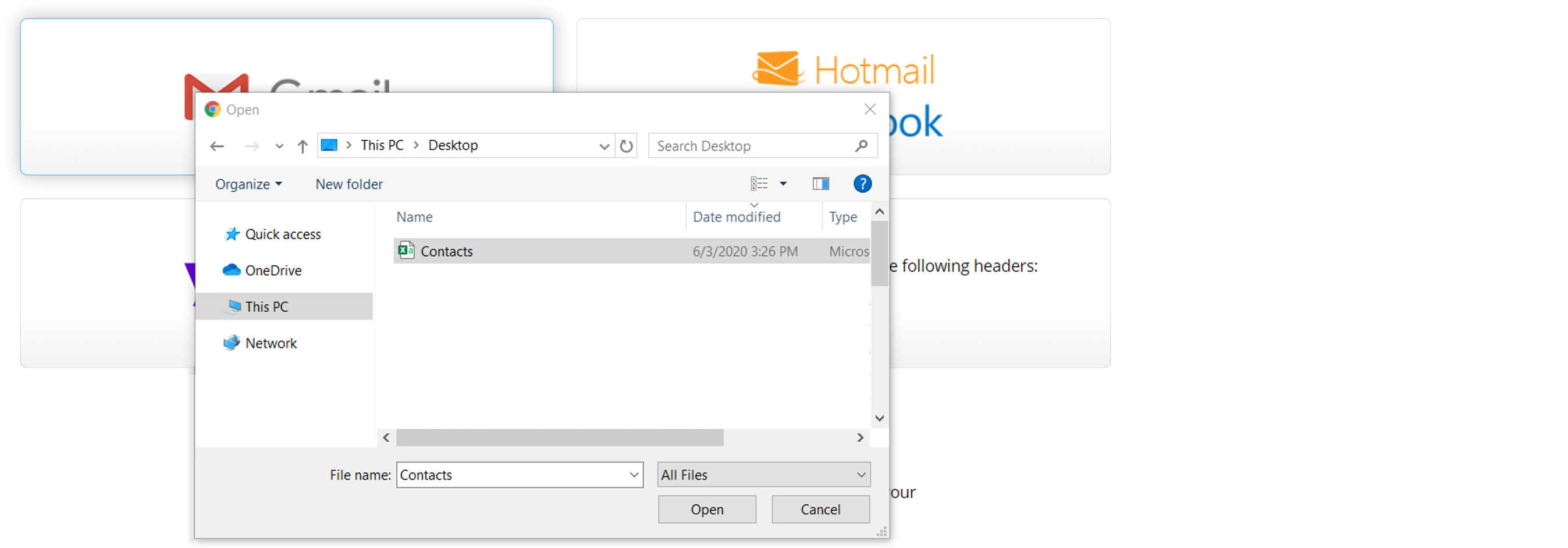
4. Select Source: Once you have saved the CSV file on your computer, click the icon of the source you used to export or create the CSV file. Then, a dialog box or window will appear that will prompt you to select the CSV that file you created which you saved on your computer. Select the CSV file you created in Step 1 that is saved on your computer.
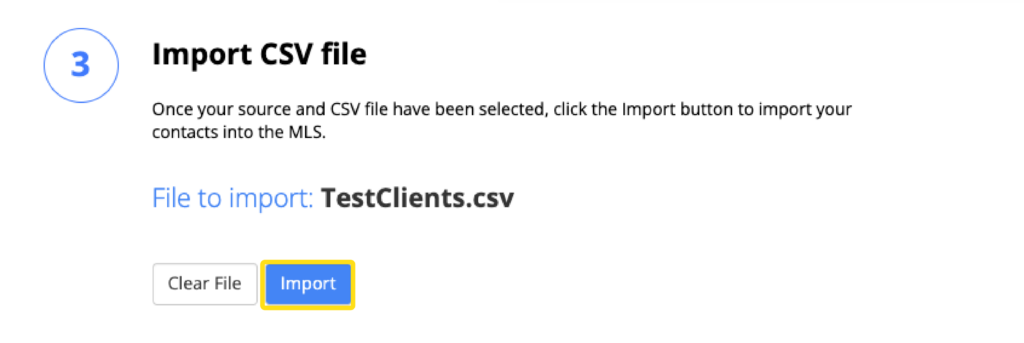
5. Import CSV File: Last, click the Import button to import your contacts into the MLS.
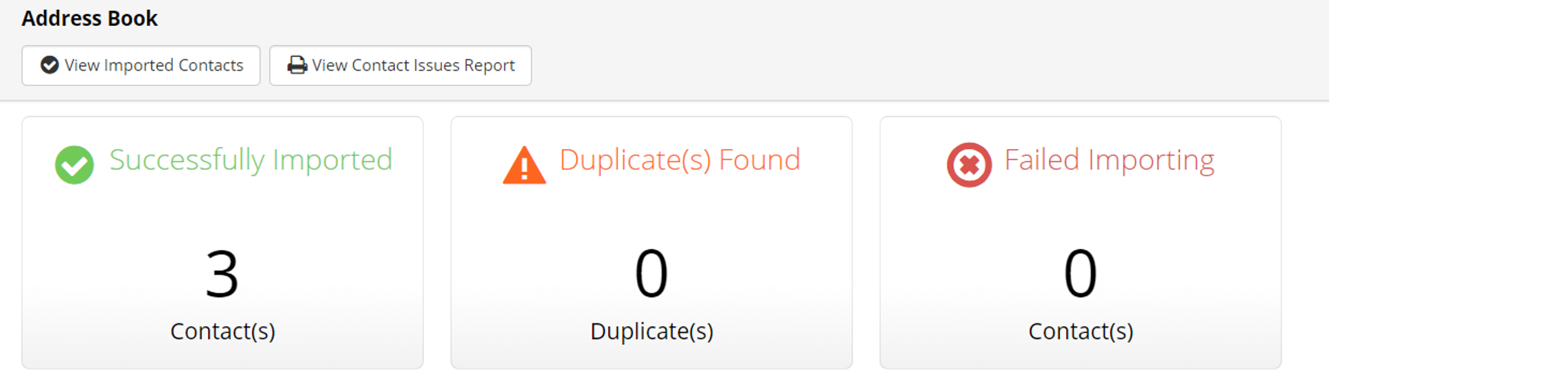
When the import is complete, your results will be displayed. Duplicates indicate contacts with an email address already in your Client Manager while Failed imports indicate issues like incorrect formatting. If you encountered a problem, select View Contact Issues Report for more information.