How Can We Help?
How Do I Create a Saved Search?
To create a Saved Search, enter the search criteria you would like saved. When all of the criteria has been entered, click on Save Search near the top of the page.

Once there, enter a name for the Saved Search, then click on Save at the top.
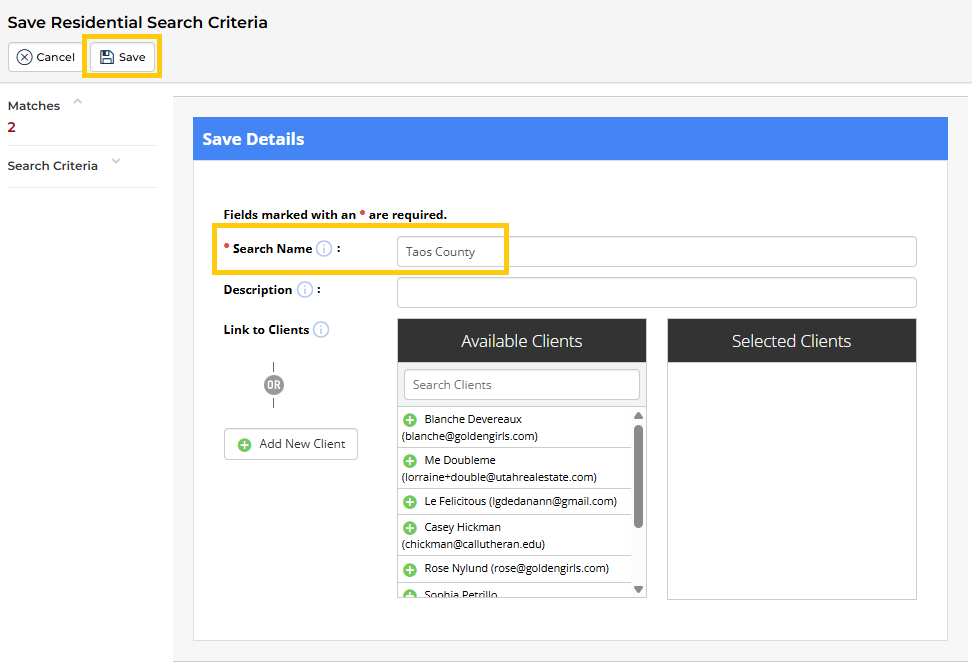
You may associate a client with the Saved Search. Please note, a Saved Search will not create an automated Listing Alert, or sent notifications to you or your client when new listings match the search criteria. To set up an automated search, create a Listing Alert. You can find out more about Listing Alerts here: https://help.realestatedata.com/index.php/mls-support-center/listingalerts/how-to-guides-hotsheets/creating-a-listing-alert/
How Do I Find My Saved Searches?
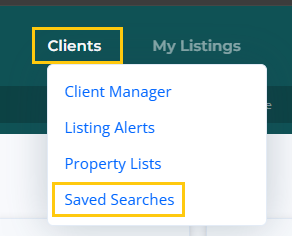
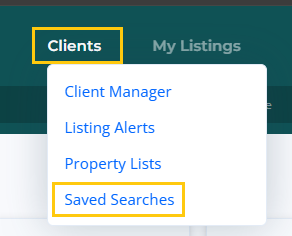
To locate your Saved Searches, click on the Clients menu at the top of the MLS page, and select Saved Searches.
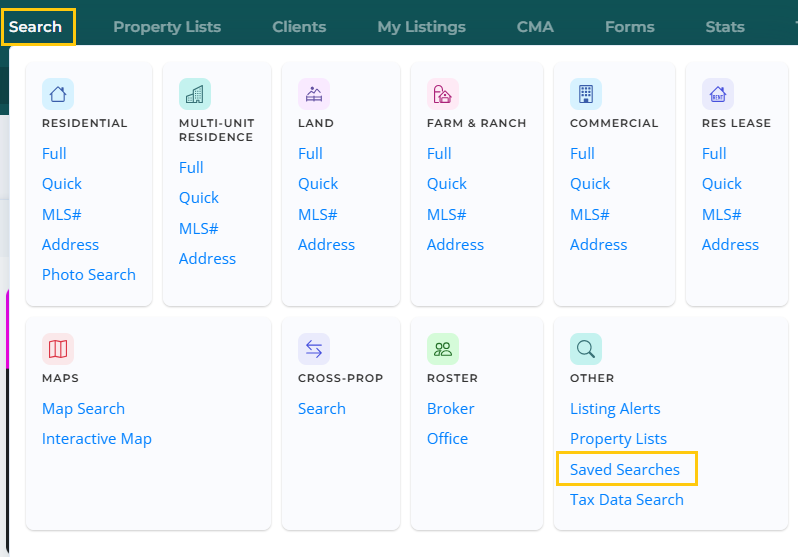
Saved Searches are also accessible under the Search menu, in the Other section (on the right hand side).
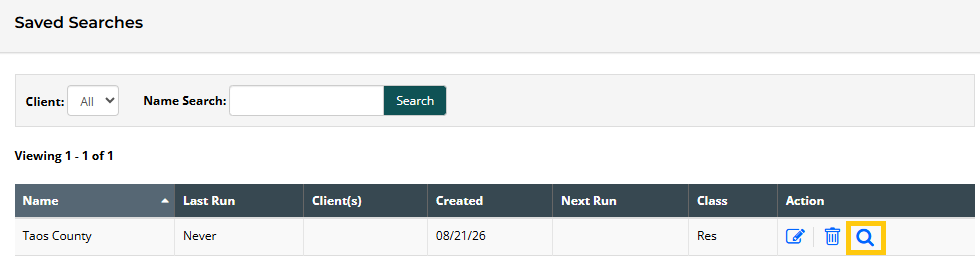
Once there, click on the magnifying glass to the right of the Saved Search to load the search results.
How Do I Edit a Saved Search?
To edit a saved search, click on the Clients menu at the top of the MLS page, and select Saved Searches.
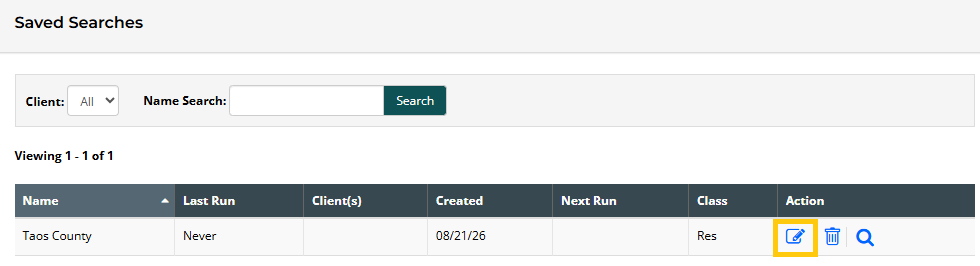
Once there, click on the edit button to the right of the saved search that you would like to edit.
From there, make any changes to the name or client associated. To edit the criteria saved in the search, click on Edit Criteria.

Make any changes needed, and click on Save at the top.
How Do I Delete a Saved Search?
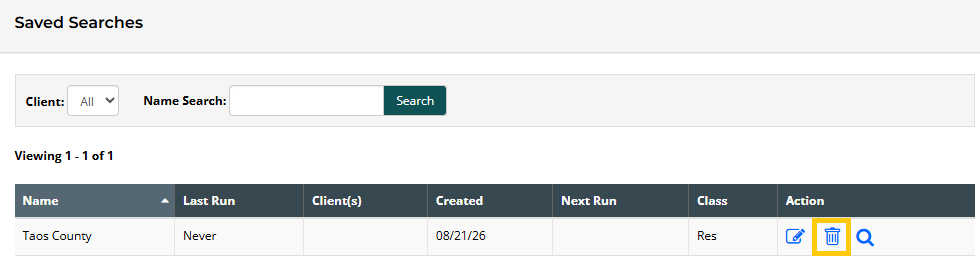
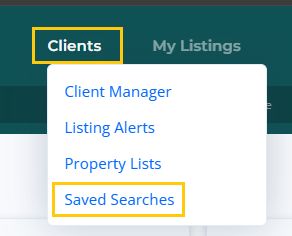
To delete a saved search, click on the Clients menu at the top of the MLS page, and select Saved Searches.
Once there, click on the trash icon next to the saved search that you want to delete, then click Yes to confirm.