How Can We Help?
Can I Create a Driving Route to Multiple MLS Listings?
Create a driving route to multiple MLS listings with the Address Routing Report.
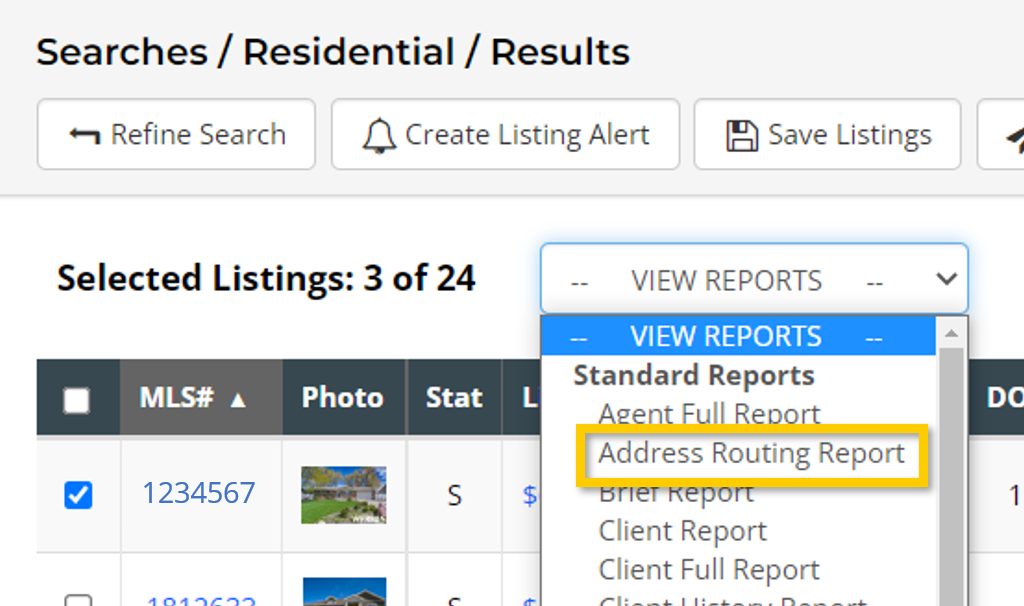
Step 1. Select the listings you will be driving to, and then select Address Routing Report from the Reports drop-down menu:
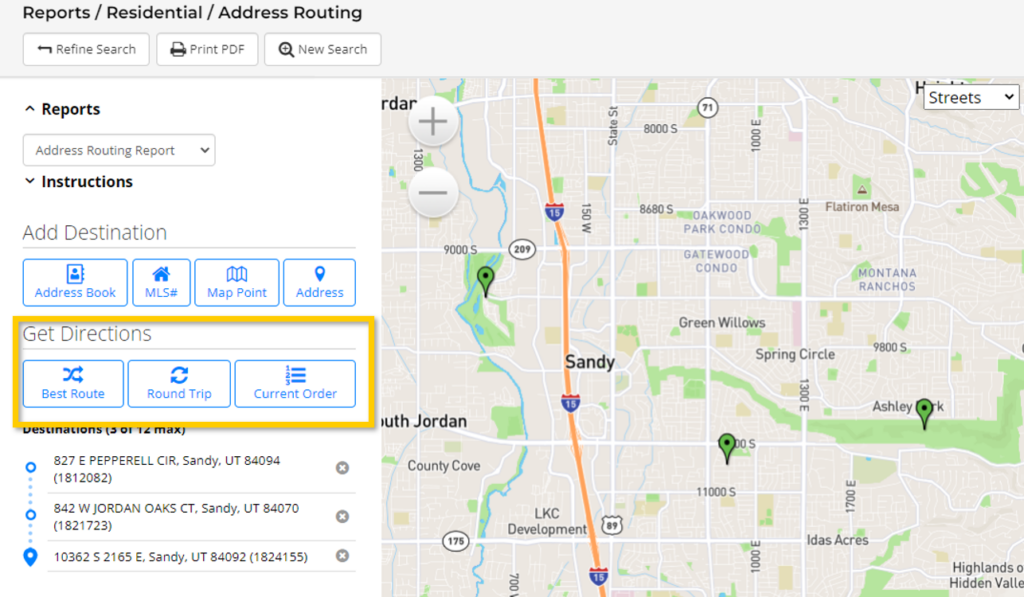
All selected listings (limit of 12) will be pinpointed on the map. The address at the top of the list will be your starting point.
Step 2. Choose an option under Get Directions:
- Best Route will map from your starting location (the address at the top) to all properties in the most efficient route.
- Round Trip will map from your starting location (the address at the top) to all properties in the most efficient route ending back at your starting location.
- Current Order will route from property to property in the order you’ve selected in the address list, allowing you to travel to listings as befits your showing schedule. Click and drag the addresses to change the order.
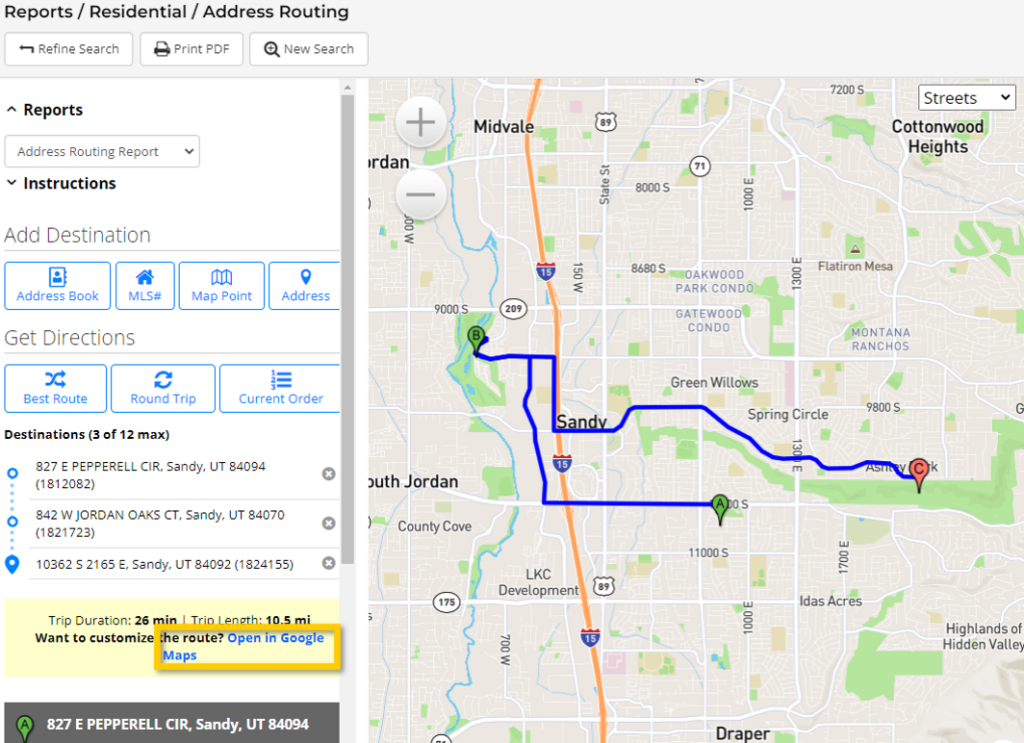
Step 3. Use Open in Google Maps to send these directions to your phone by text or email, which can be forwarded to your client(s). Alternatively, you can print the PDF report using the option in the menu at the top of the page.
Can I Add More Destinations to my Route?
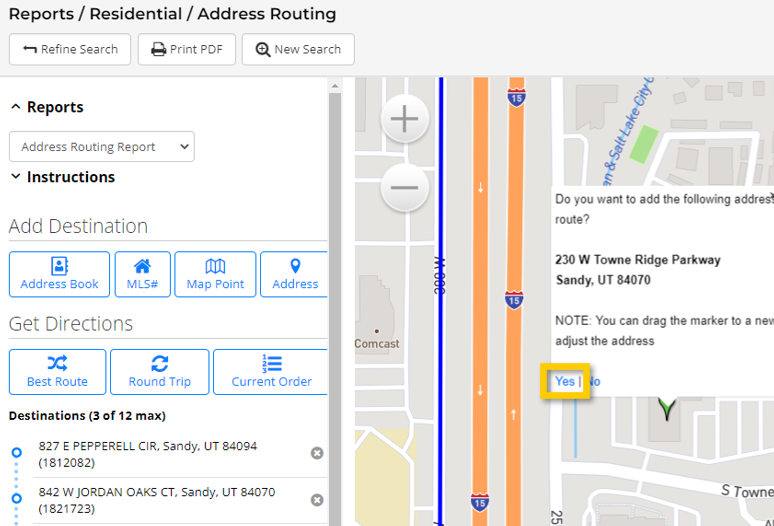
Step 1. Add additional destinations (such as the meeting point with your client or your office address) by selecting an option under Add Destination.
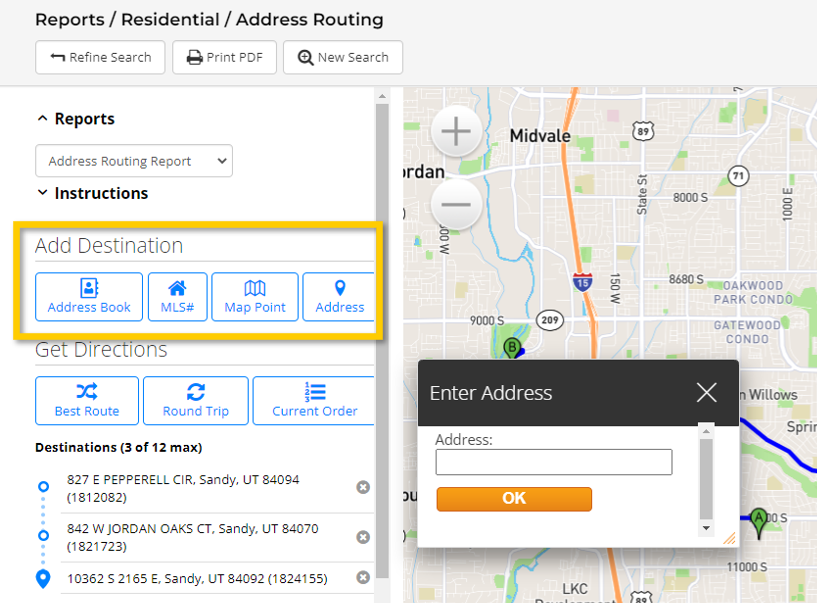
Step 2. Once you have entered the address and clicked OK, the system will ask you to confirm the map location of that address. Click Yes to confirm. Or move the map pin to the correct location, and then click Yes.