
How Can We Help?
What is the CMA Report?
The CMA (Comparative Market Analysis) Report allows MLS members to compare search results to the subject property of a CMA. This can help in selecting comparable listings/properties to include in your CMA, as well as in accounting for the differences between your chosen comparables and the subject property.
How do I Read the CMA Report?
After completing a search for listings similar to your subject property, select the specific listings you would like to compare to your subject property. Then, choose CMA Report from the Reports dropdown at the top of the page.
Once on the CMA Report page, you will see a column for your subject property (The blue column on the left) and you will see grey columns to the right which will include the listings you selected from your search results. If you have selected more than three search results, those listings can be seen by scrolling from left to right.

The average price of your selected search results appears on the left-hand side of the page under Subject Range. The average price of every listing, regardless of status, appears under Total. If you have selected search results in various statuses, the Subject Range will also include the average price separated by status.
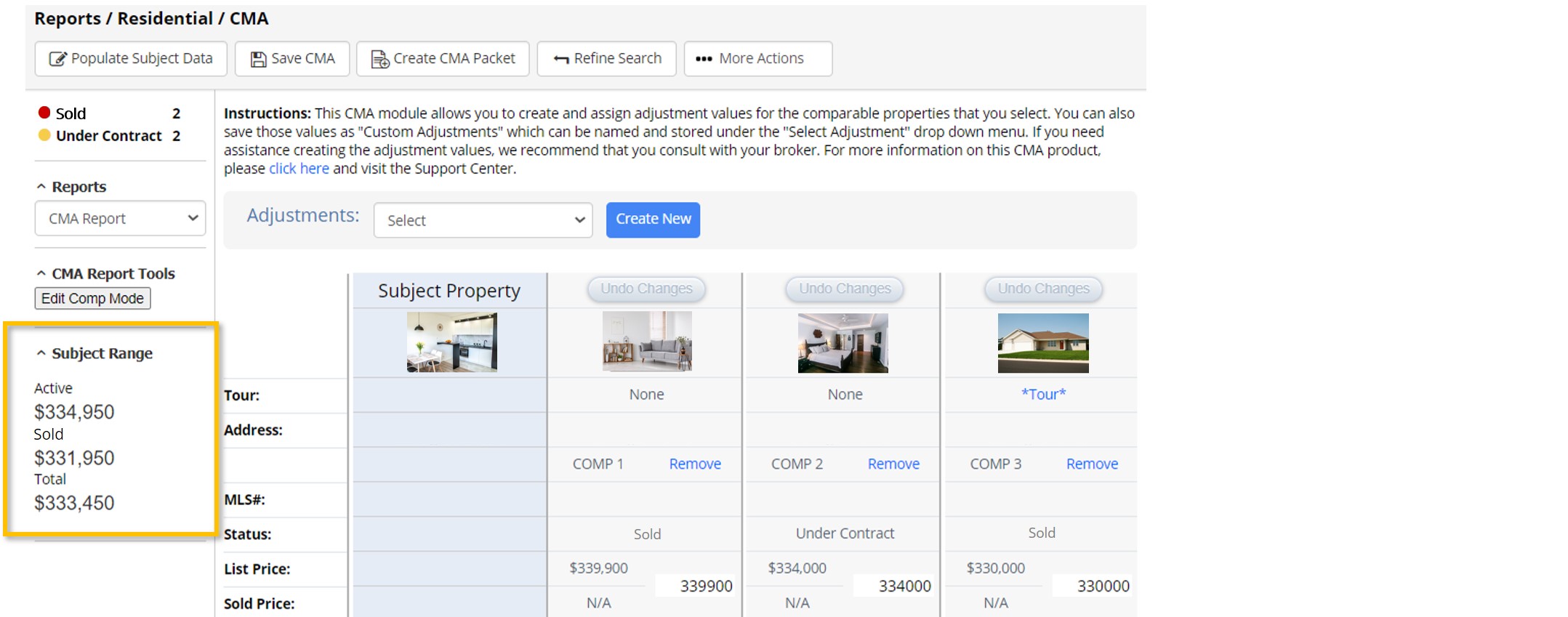
Note: For Sold status, the sold price is used. For all other statuses, the most recent list price is used.
How do I Make Adjustments?
Because no two properties are identical, the CMA Report can be used to account for the differences between your search results and your subject property. This is accomplished by using adjustment factors. Adjustment factors can be created in two ways:
- Create a set of adjustment factors to be used for this CMA and future CMAs by selecting Adjustments: Create New. Use this set of factors in future CMAs by selecting it from the dropdown menu labeled Adjustments.
- Add adjustments on the fly with Add Adjustment Factor. These adjustments will be used for this CMA only.
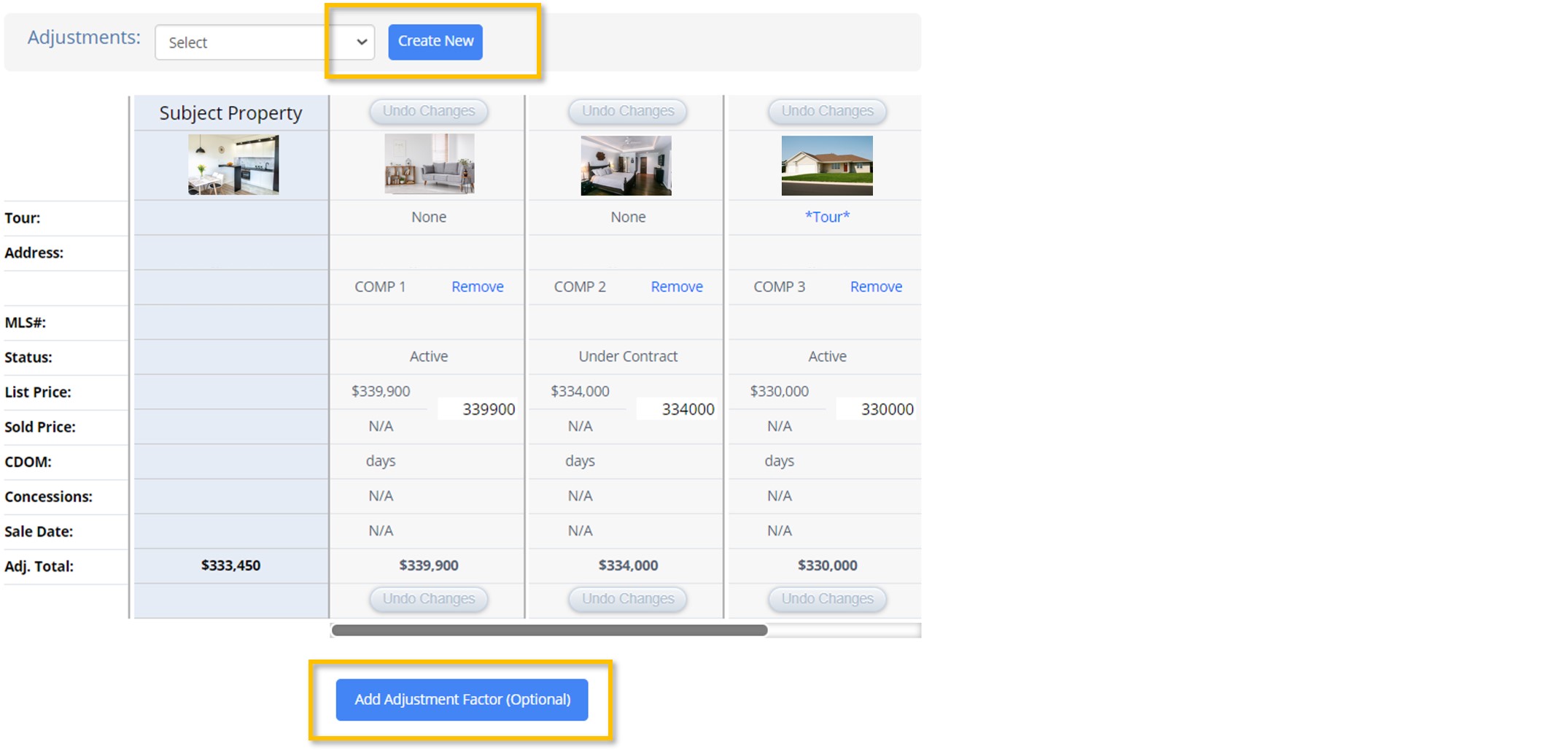
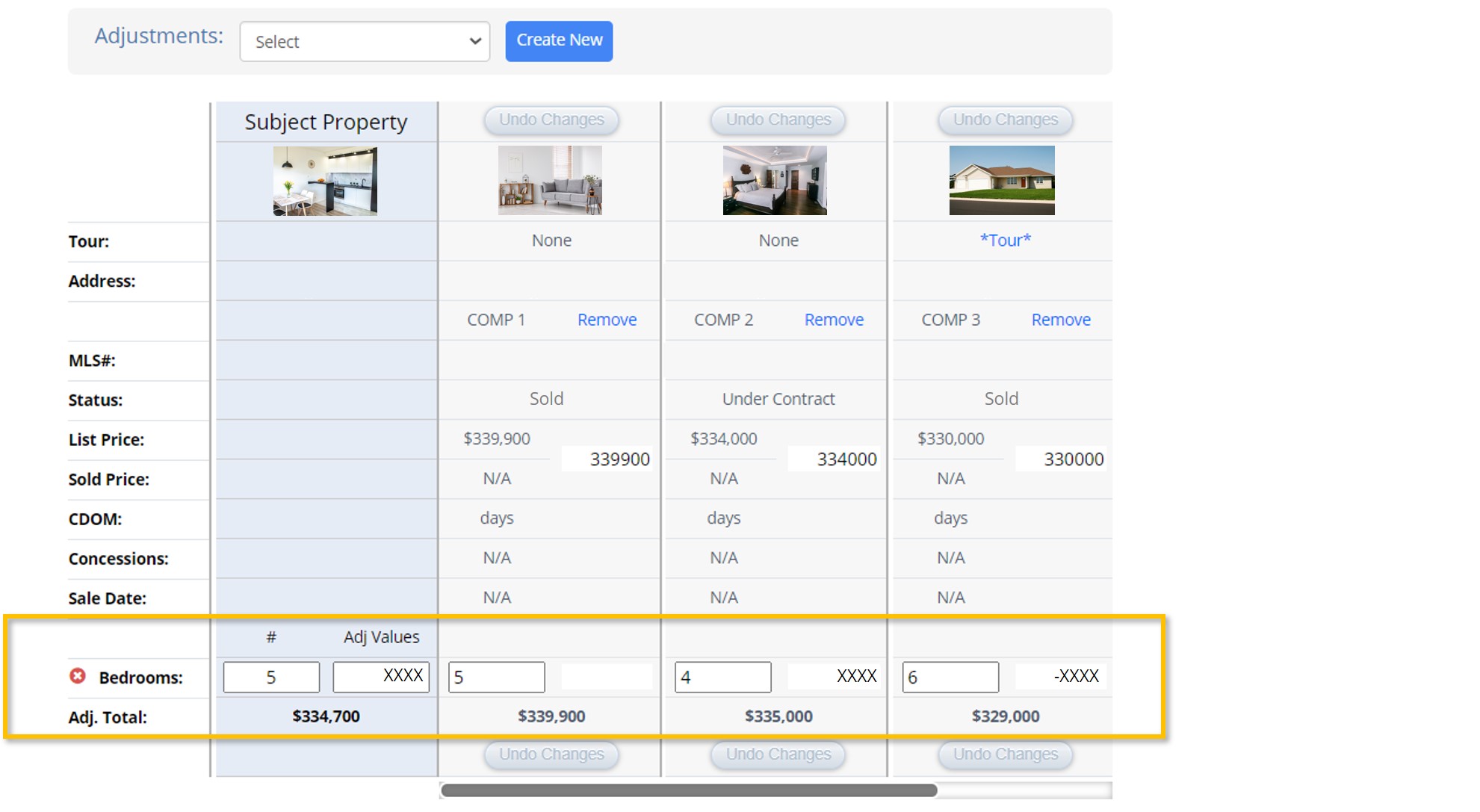
In the example below, Bedrooms have been added as a factor. In the Subject Property column, enter the number of bedrooms the subject property has. Next, assign a value to this factor. This value will then be added to (or subtracted from) the price of each chosen comparable with a different number of bedrooms than the subject property. The adjusted price will then be used in the averages under Subject Range.
Tip: The more similar your comparables are to your subject property, the less adjusting will be needed. We recommend finding comparable properties that are as similar as possible to the subject property, so that few adjustments are necessary.
Note: The MLS encourages all members to thoroughly research market values for the markets in which they work. CMA adjustment factors and values depend upon a variety of details such as proximity to downtown, size of the home, quality of the home, quality of the neighborhood, and features such as views. As an example, the price attributed to having an additional bedroom for a property in Sugar House will be different than the price attributed to having an additional bedroom for a property in Orem. For these reasons, we recommend you create custom adjustment factors for the specific market or markets in which you conduct business.
How do I Share my CMA with Clients?
First, save your CMA by selecting Save CMA at the top of the page. Your CMA can be accessed any time under the CMA tab.
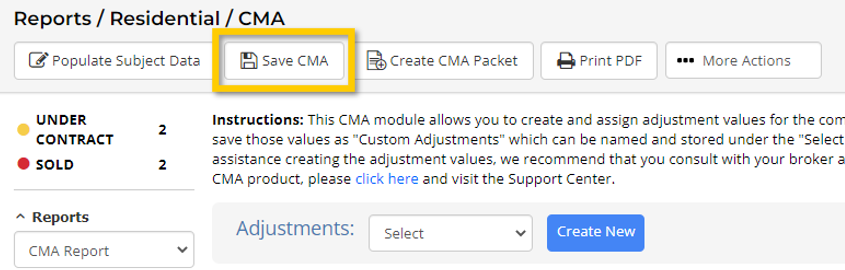
Create a basic presentation of your CMA findings with Create CMA Packet at the top of the page.