
How Can We Help?
How Can My Seller Approve and/or Receive Notifications about Showing Requests in ShowingTime?
In order for your seller to approve showing requests and/or receive notifications about showing appointments, the seller must be added as a contact on the listing in ShowingTime. Here are the instructions to add a contact on a listing in ShowingTime.
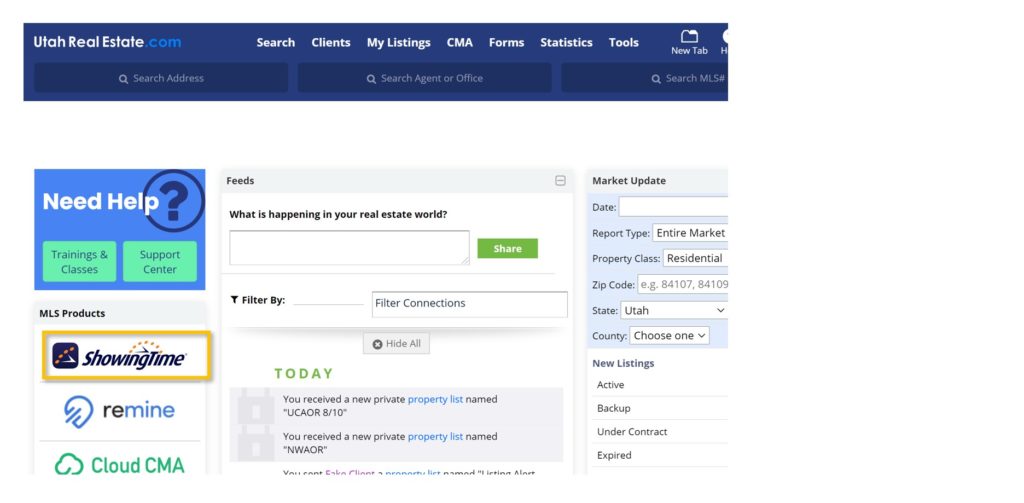
1. From the UtahRealEstate.com homepage, click the ShowingTime icon on the left side of the page.
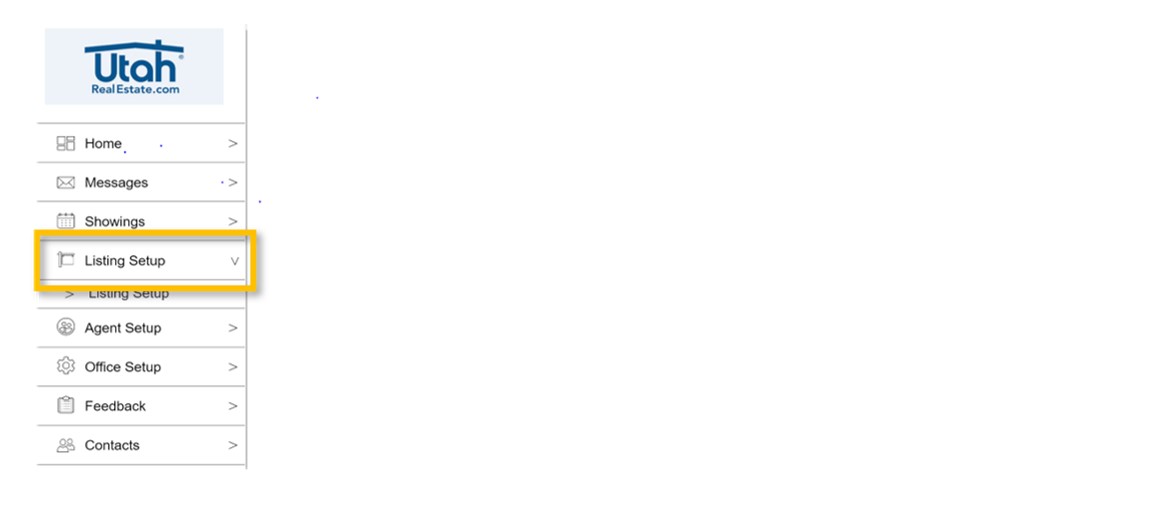
2. Click the Listing Setup option on the left side of the page.
3. On the grid view, find the listing you want to edit, and click anywhere on that row to edit the listing.

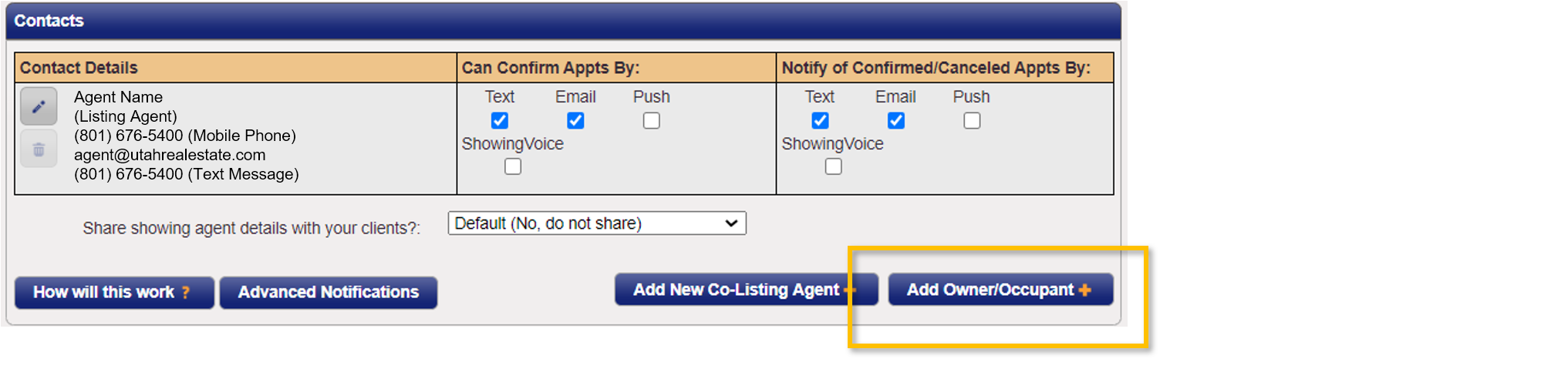
4. In the Contacts section, click on Add Owner/Occupant.
5. Click on the Add New tab, and enter the seller’s information. Note: Make sure to select Mobile Phone to enable text message alerts. Click on Save when you are finished.

6. Once the seller information is added, the seller will then appear in the Contacts section of your listing within ShowingTime. In that section, you can use the check boxes to (1) allow the seller to confirm or deny showing requests, and/or (2) receive notifications about confirmed or canceled showing appointments.
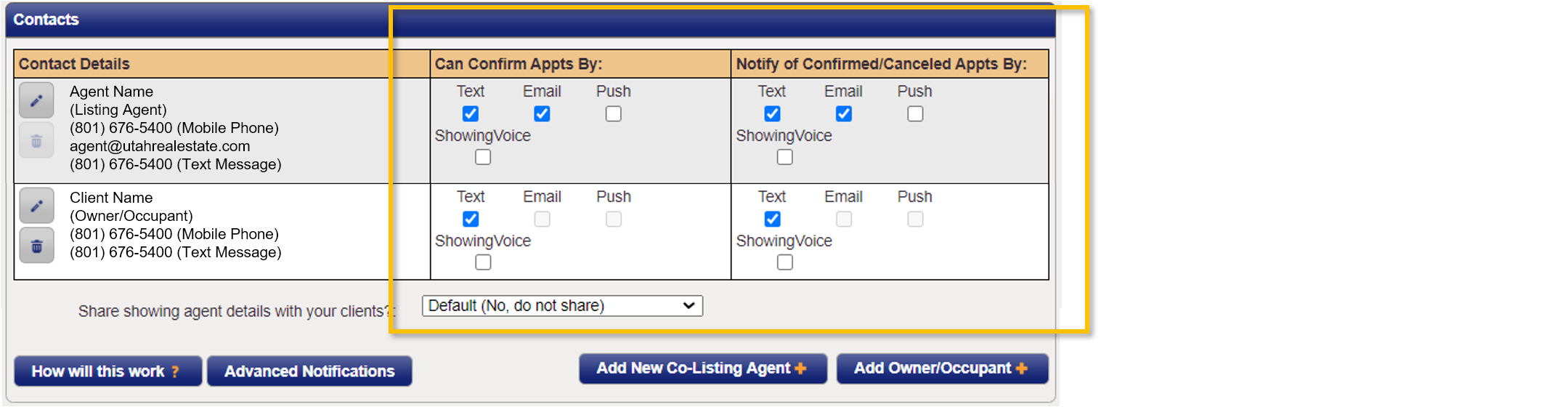
Example: You and your seller are both setup with permissions to approve/deny showing requests (as illustrated in the screen shot above). A showing request is sent to both you and your seller. Your seller responds to the request before you respond, and they confirm the showing request. As soon as your seller confirms the request, that confirmation (i.e. the approval or denial of that request) would immediately be sent to the agent that submitted the showing request and you would no longer have the ability to confirm or deny that initial showing request.
7. Last, when you are finished, don’t forget to click the Save Changes option at the top of the screen.

If you need any assistance, please contact us at 801-676-5400 or support@utahrealestate.com.