
How Can We Help?
How do I Edit my IDX Subscription?
There may be cases where you need to update or change information that was previously entered when you created your IDX subscription. Common examples include:
- Changing website vendors, and/or
- Changing the URL associated with your IDX website
How do I Change Website Vendors?
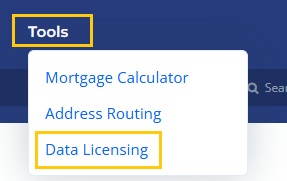
Step 1. Select the Tools option from the main navigation menu, then select the Data Licensing option.
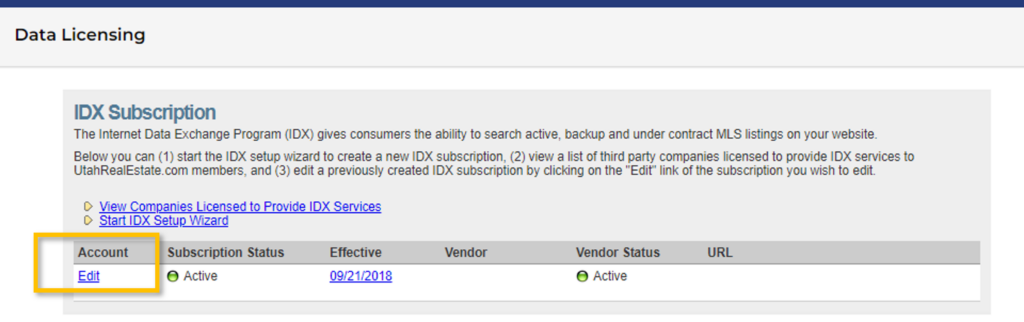
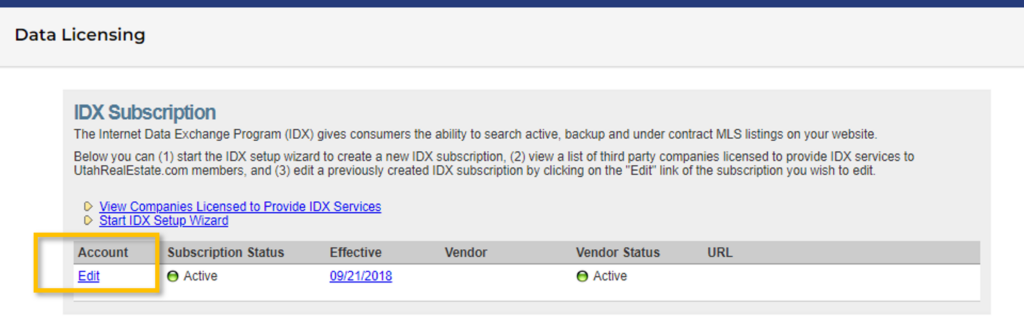
Step 2. On the Data Licensing page you will see a section called IDX Subscription, which is where you can view all your existing IDX subscriptions. To edit an existing subscription, click on the Edit link.
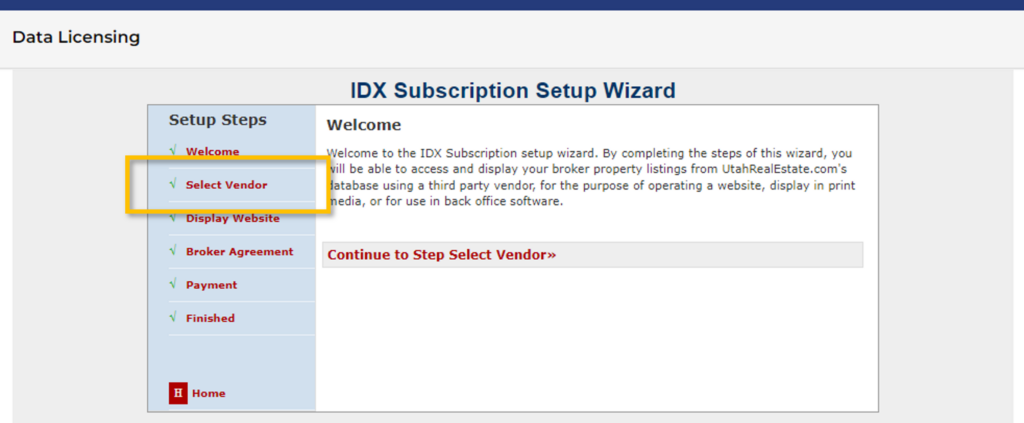
Step 3. Click the Select Vendor option.
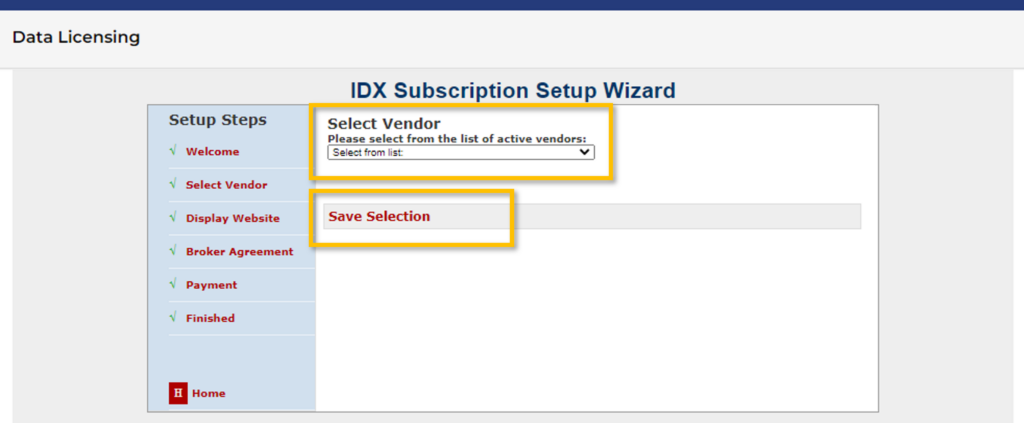
Step 4. Use the drop down list to select your new vendor. Once you have selected your new vendor, click the Save Selection option. Please note, when you save your selection you will see a pop-up message warning you that changing your vendor will require your broker to re-approve your IDX request. When you receive this warning, select the Ok option to proceed.
Once your broker re-approves your IDX request, your new vendor will receive an automated email confirming the approval.
Can I Change the URL of my IDX Website?
1. Select the Tool option from the main navigation menu, then select the Data Licensing option.
2. On the Data Licensing page you will see a section called IDX Subscription, which is where you can view all your existing IDX subscriptions. To edit an existing subscription, click on the Edit link.
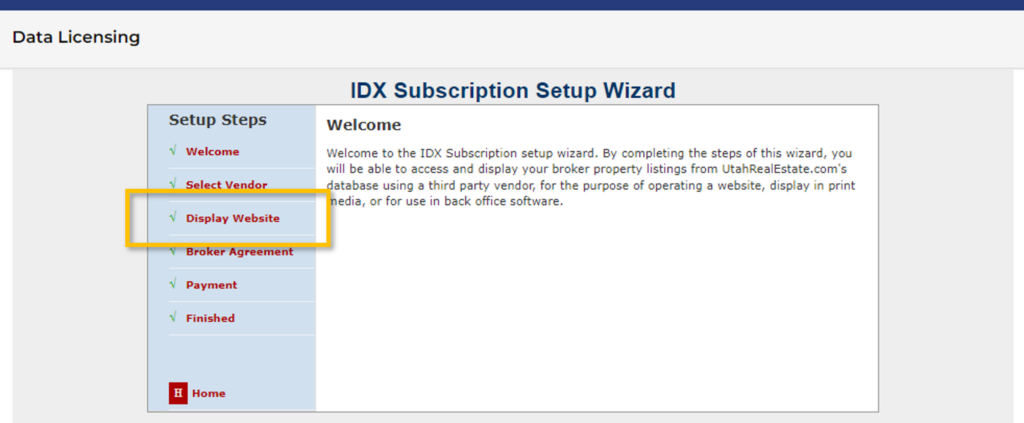
3. Click the Display Website option.
4. Use the Domain Name field to enter your new website address (URL), and click the Submit Changes option.
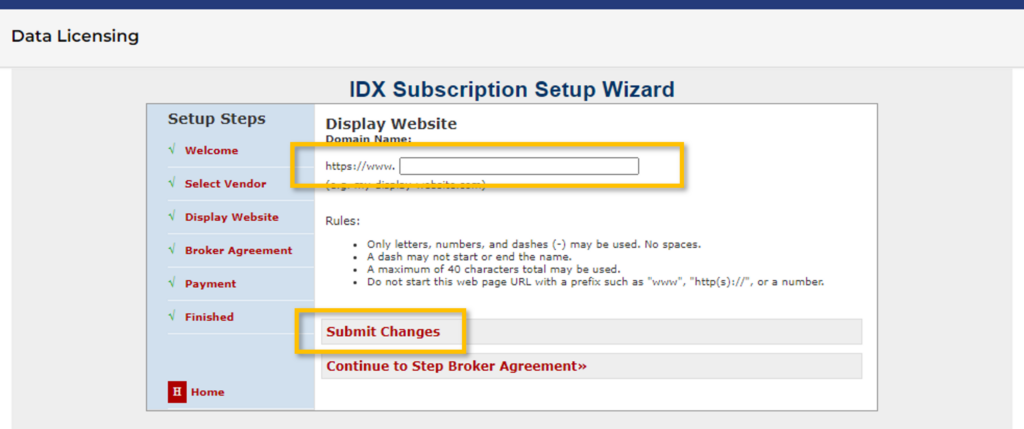
As soon as your changes are saved, your vendor will receive an automated email that notifies them that you have updated your URL.