How Can We Help?
How Do I Email Listings to a Client?
Emailing listings from the MLS can be done in several ways. The two methods MLS users most prefer are ‘Listing Alerts‘ and ‘Send Listings‘. These methods differ in that ‘Listing Alerts’ are automatic and ongoing while ‘Send Listings’ is a one-time manual send. Follow the steps below to use the ‘Send Listings’ feature of the MLS to send a collection of selected listings to a client.
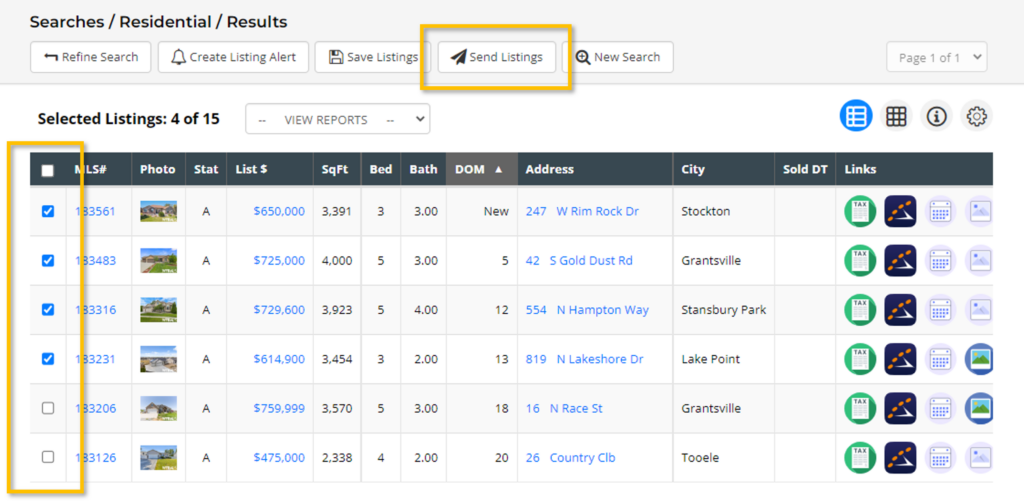
Step 1. from the Search Results page, Select the listing(s) you would like to send, then choose Send Listings at the top of the page.
Step 2. Fill in the ‘To’ field with the email address(es) of the client(s) to whom you want to send listings. You can send selected listings to multiple clients by separating each email address with a comma. While we recommend adding clients to your Client Manager, it is not required for ‘Send Listings’. However, if a client is in your Client Manager, the email address will pre-populate for ease of selection.
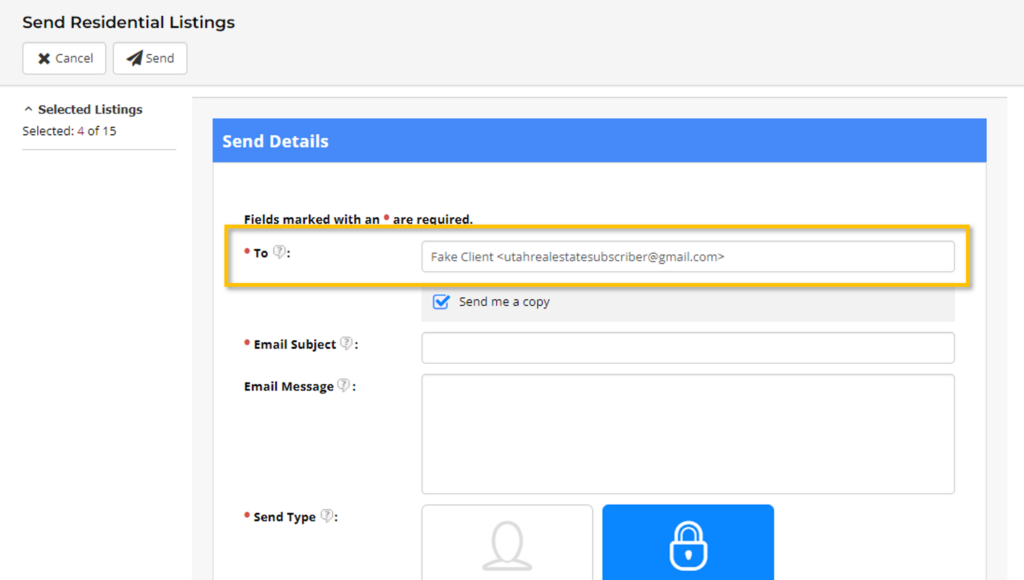
Note: Do not create a separate email address to send listings to yourself. Simply type your email address in the ‘To’ field, or select ‘Send me a copy’ to receive the listings in addition to your selected client.
Step 3. Complete the remainder of the required fields by adding an Email Subject, selecting a Send Type, and, optionally, adding an Email Message.
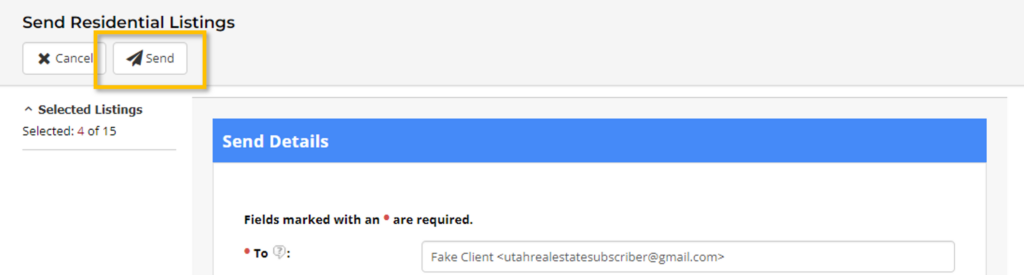
Step 4. Finally, select Send at the top of the page.