
How Can We Help?
What is a Virtual Showing?
A virtual showing is when the buyer’s agent and/or their client view a property without being physically present at the home. Some virtual showing options include a live-stream video for viewing the house in real-time or a pre-recorded video of a walkthrough of the home.
As a Listing Agent, How Do I Setup My Listings for Virtual Showings?
When editing the ShowingTime settings on your listing, locate the Allow Showing Agents to Request Virtual Appointments option.
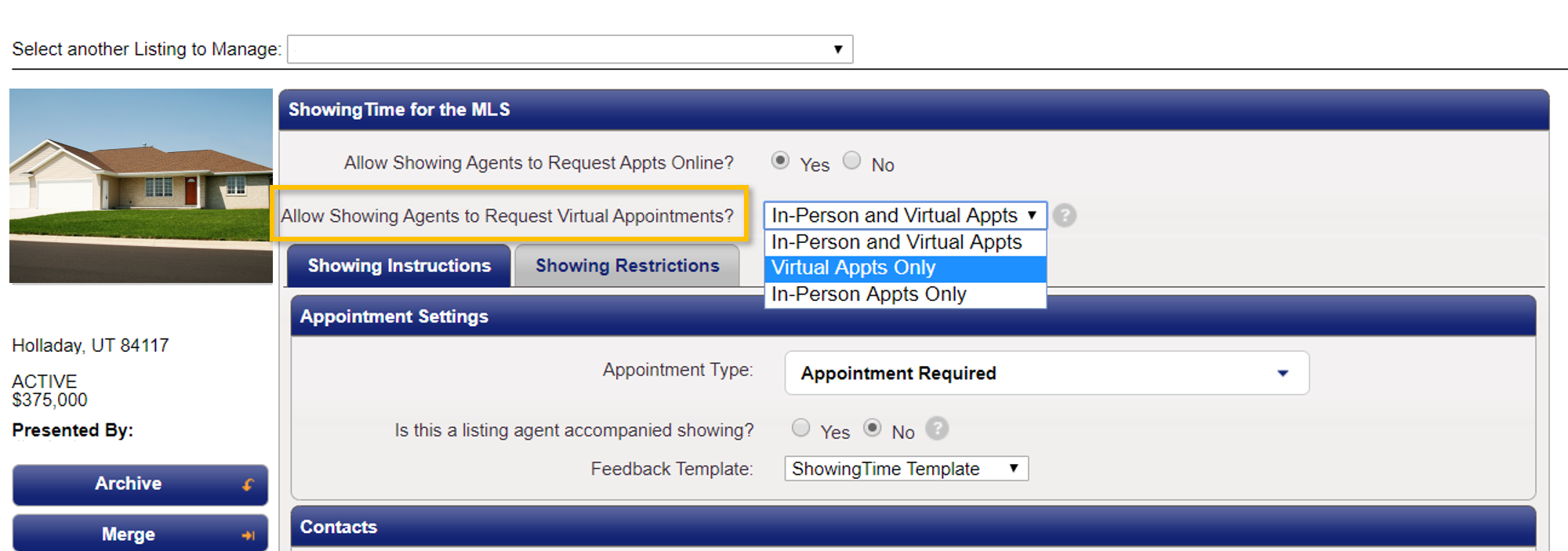
The Allow Showing Agents to Request Virtual Appointments section can be used to allow or restrict virtual showings. Options include:
- In-Person and Virtual Appts: Allows buyers’ agents to request either in-person or virtual showing appointments when submitting a showing request. Neither showing type is restricted.
- Virtual Appts Only: Showing requests are limited to virtual showing requests only. Buyers’ agents will not be able to request in-person showings through ShowingTime. Additionally, property access information (i.e. traditional in-person showing instructions, lockbox information, etc.) will not be available to the buyers’ agents that submit virtual showing appointment requests.
- In-Person Appts: Showing requests are limited to in-person showing requests only. Buyers’ agents will not be able to request virtual showings through ShowingTime.
As a Buyer’s Agent, How do I Request a Virtual Showing?
Requesting a virtual showing through ShowingTime is nearly identical to requesting a traditional showing:
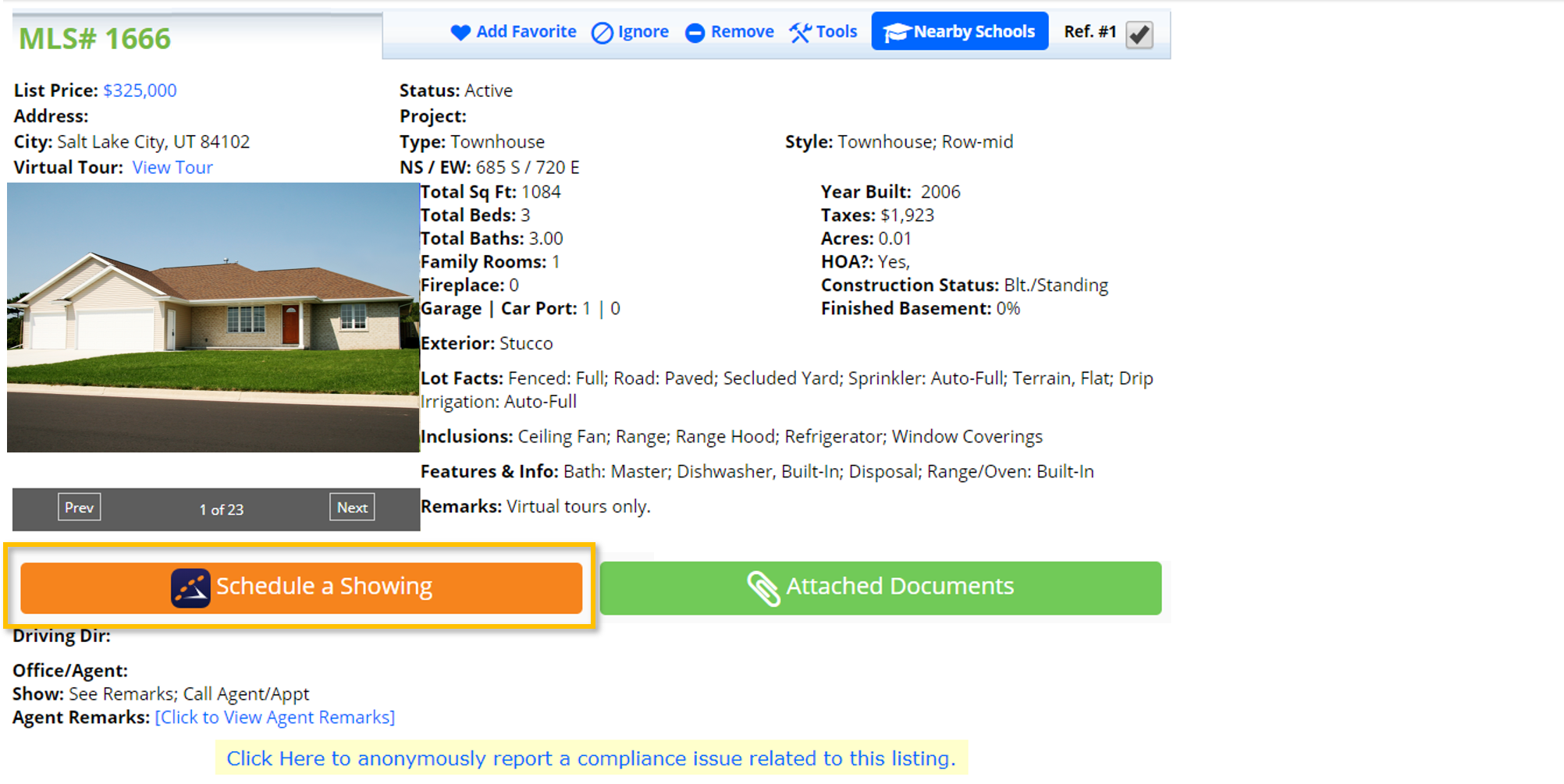
1. Click the ShowingTime icon on the listing of your choice within the MLS. This will open the listing in ShowingTime.
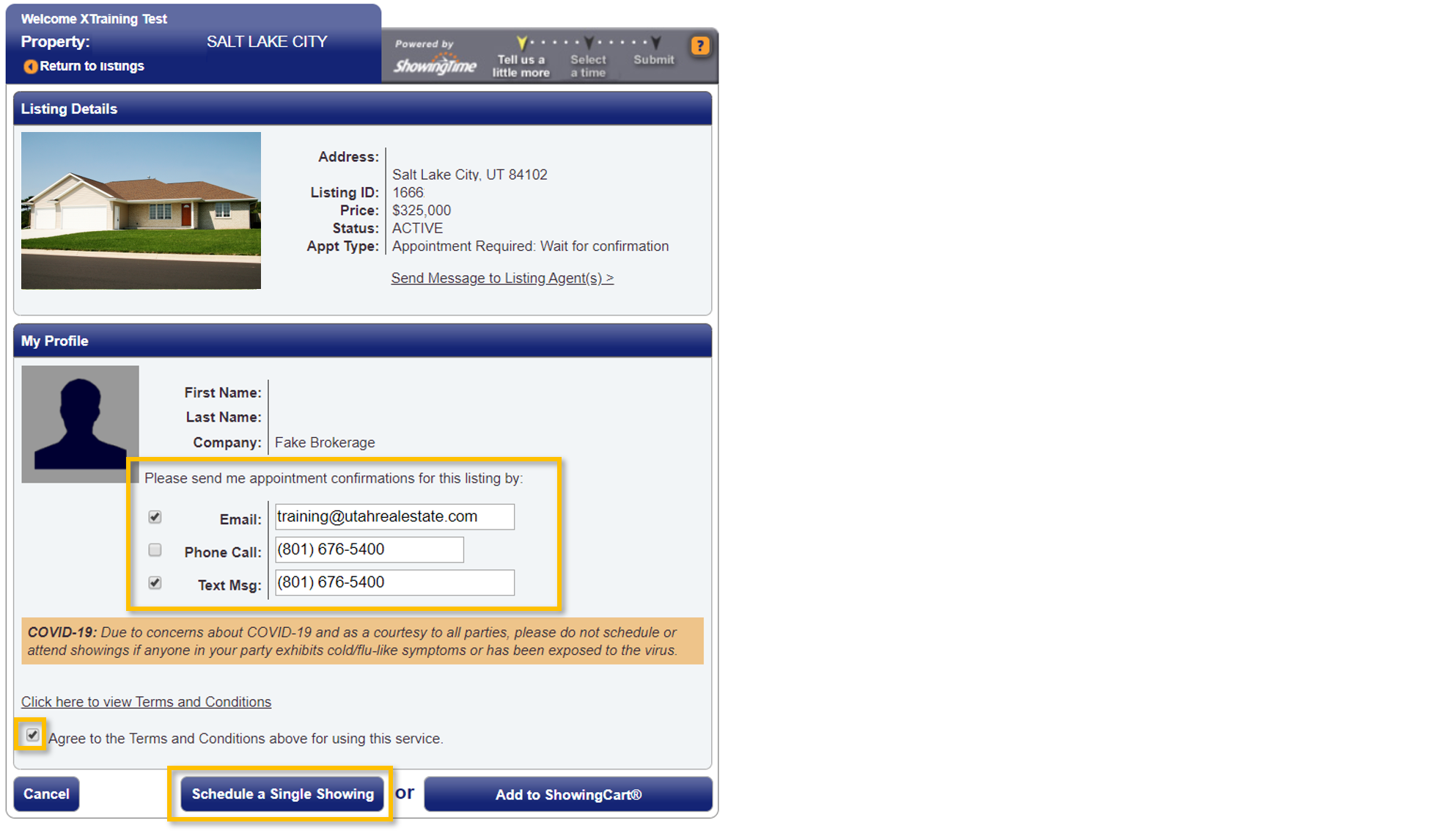
2. Confirm how you want to receive notifications about your showing request, select the checkbox to indicate you Agree to the Terms and Conditions, and select Schedule Single Showing.
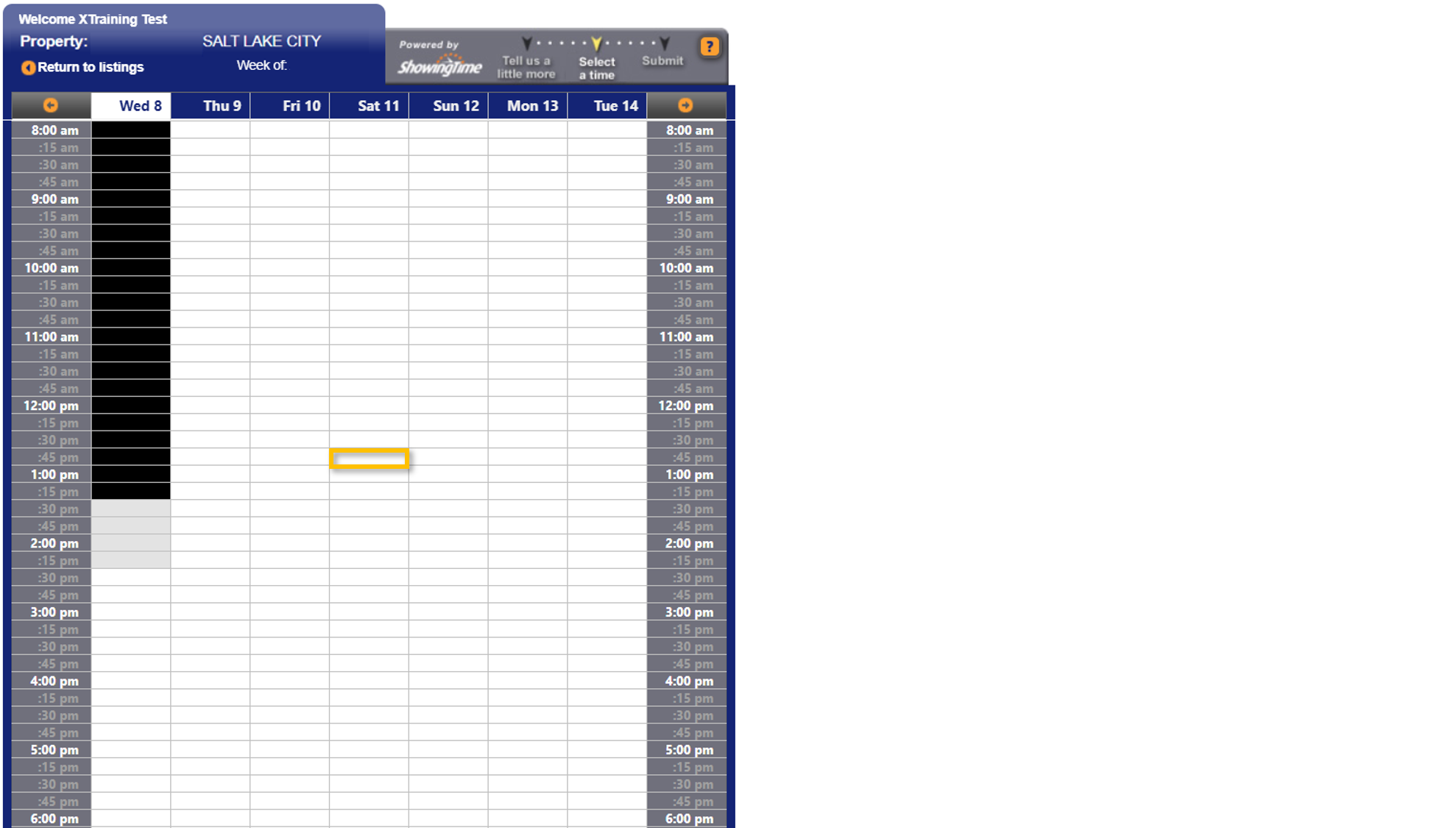
3. Use the calendar to propose a date and time for your showing. Times marked in black are unavailable.
4. Select the Virtual Showing appointment type. You can also add additional details about your showing under Optionally add a note for the listing representative below, such as the virtual platform you and your client would prefer to use for the virtual showing.
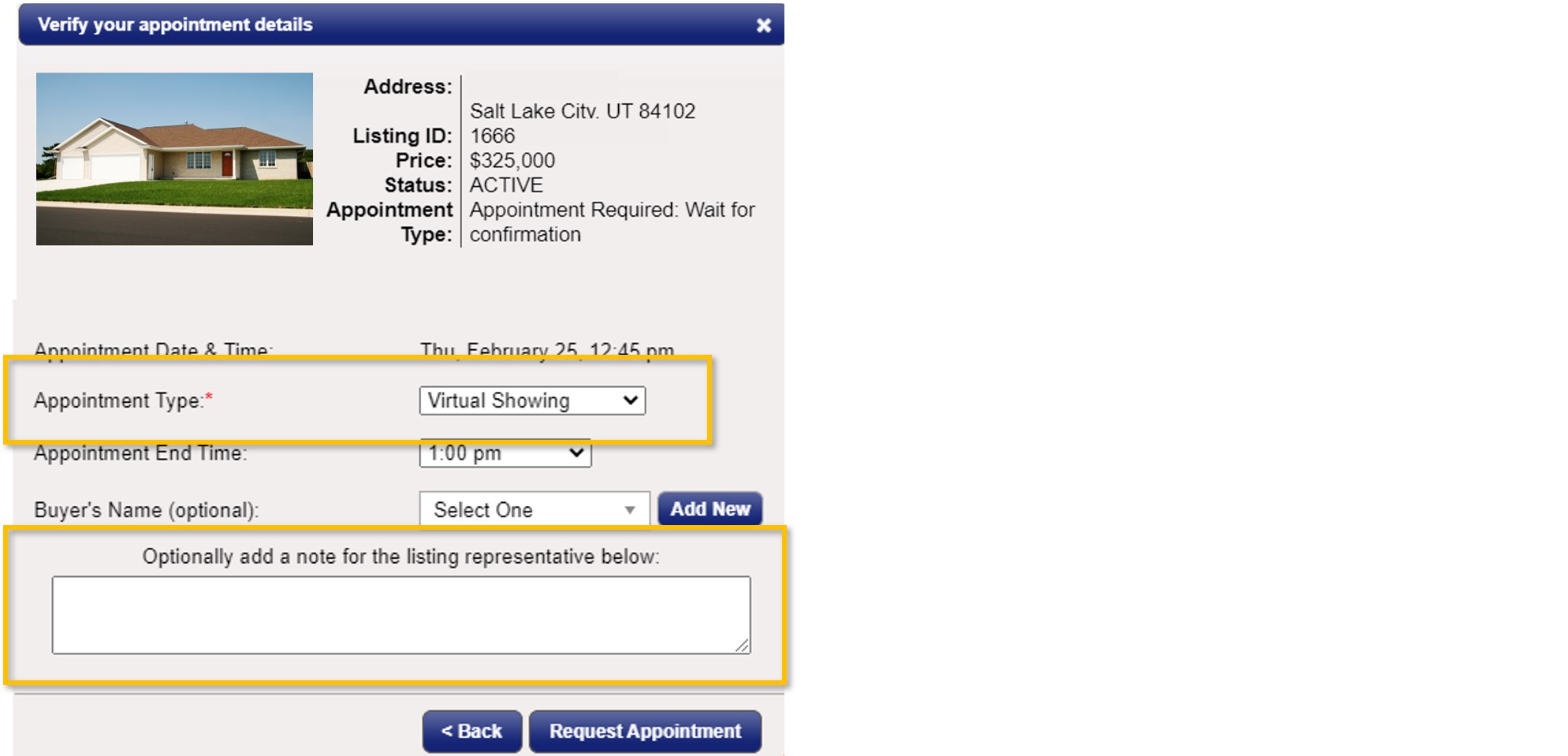
Note: If the listing agent does not permit virtual showings, you will not have access to the Virtual Showing appointment type in the Appointment Type dropdown.
5. Finally, select Request Appointment to submit your showing request.
If you need any assistance, please contact us at 801-676-5400 orsupport@realestatedata.com.