
How Can We Help?
How do I Set Up ShowingTime on My Listings?
1. Select ShowingTime from the UtahRealEstate.com Dashboard or select the Schedule Showings option when editing a listing.
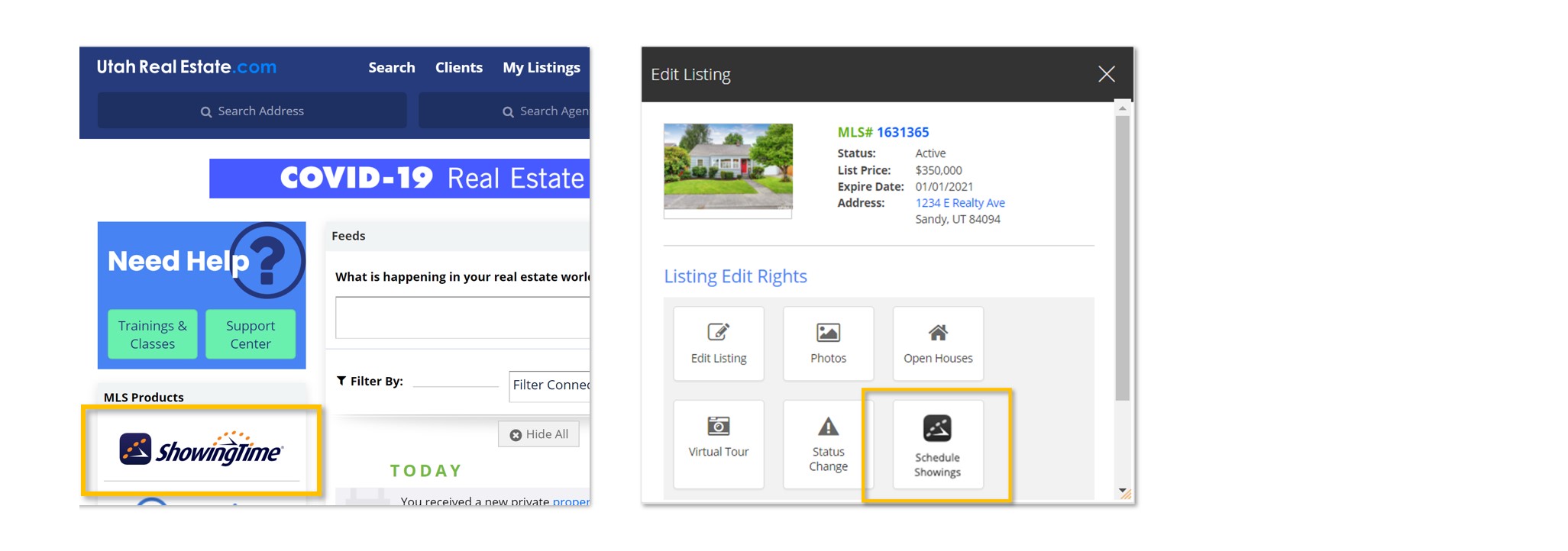
2. Choose Listing Setup from the main navigation menu on the left side of the page within ShowingTime.
3. Click on the listing you want to edit.
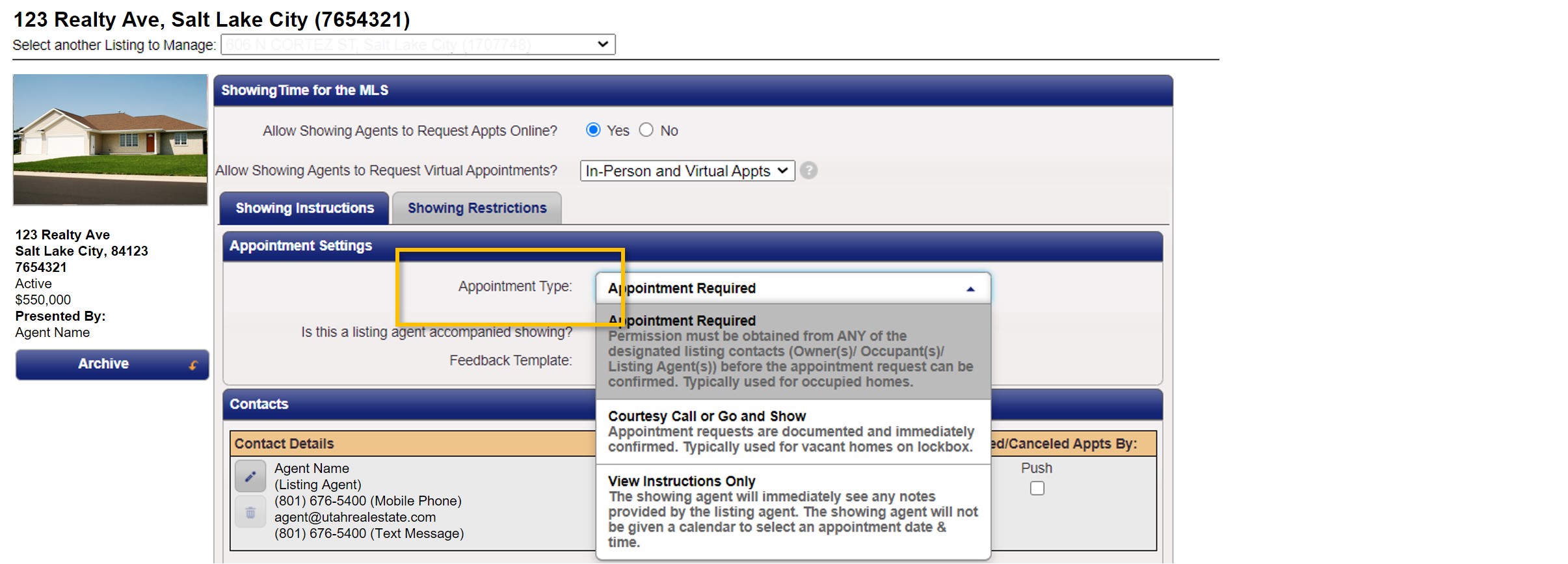
4. Select your Appointment Type.
5. Specify your notification preferences for receiving showing requests (Text Message, Email, etc.), as well as your preferences for receiving notifications of confirmed showing appointments.
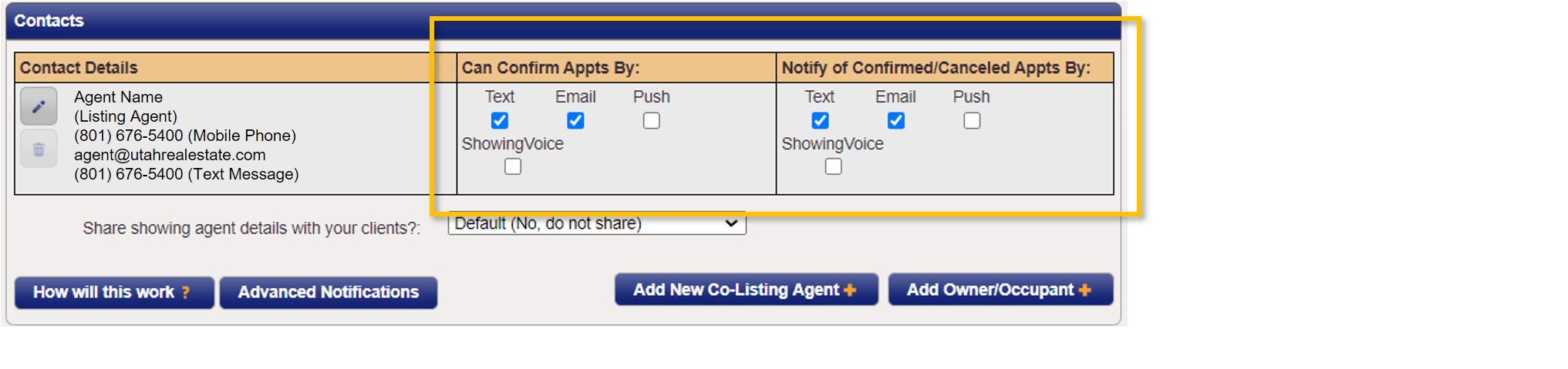
Note: If you want a co-listing agent, assistant, seller(s), or occupant(s) to receive showing requests and/or receive notifications regarding confirmed showing appointments, you can use the Add New Co-Listing Agent or Add Owner/Occupant buttons to add these contacts to your listing.
6. Use the Appointment Restrictions section to block out times when the listing is not available to be shown.
7. The Access Information section can be used to add keybox or alarm details.
8. The Additional Instructions and Driving Directions sections can also be used to add additional information about showing and navigating to the listing (as applicable).
9. Last, once you have completed the setup for your listing, select the Save Changes option at the top of the page.
Can I Create Default Settings for Every Listing?
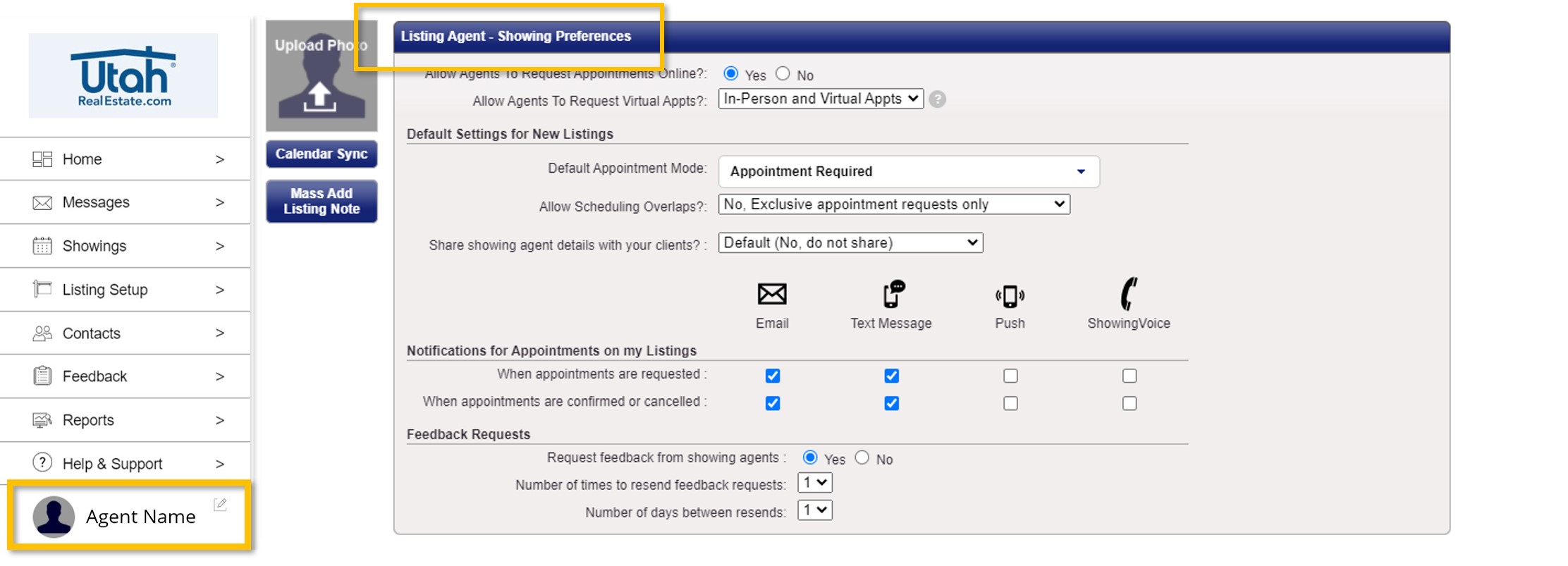
Many settings can be pre-selected as default settings for new listings. These settings can be found under Listing Agent – Showing Preferences on the Profile page.
Can Multiple Agents Show My Listing at the Same Time?
The Allow Scheduling Overlaps section can be used to allow or restrict multiple showings at the same time. Options include:
- No, exclusive appointment requests only will restrict buyers’ agents making a showing request to only those dates and times that have not yet been requested by another agent.
- Yes, no need to inform the showing agents will allow multiple agents to request showings for the same date and time. With this option, showing agents will not be notified that other agent(s) and their client(s) may also be showing the home at the same time.
- Yes, please tell the showing agent ahead of time will allow multiple agents to request showings for the same date and time. With this option, showing agents with overlapping appointments will be notified that other agents and their clients may be showing the home at the same time.

Which Appointment Type is Right for My Listing?
- Appointment Required: Use this appointment type when a showing must be confirmed by either the agent or the seller (Example: When the property is occupied).
- Go and Show: Use this appointment type when showing requests can be instantly confirmed (Example: When the property is vacant).
- View Instructions Only: Use this appointment type when a showing date and time is not required (Example: When the property is a vacant lot).
Am I able to Receive Showing Requests via Text Message?
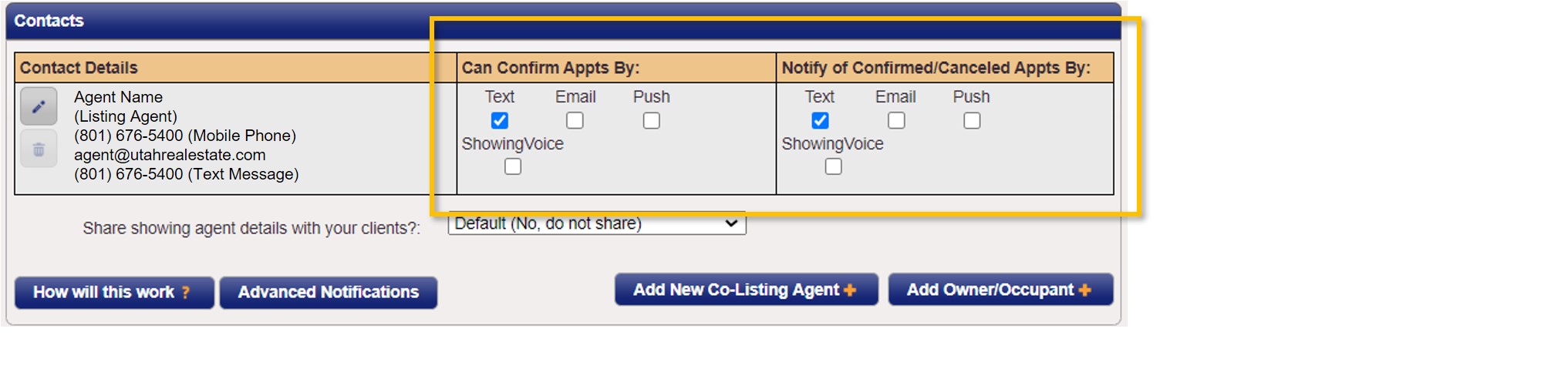
Yes. During the listing setup within ShowingTime, select the Text Message checkbox under the Contacts section. This option can be selected for showing requests as well as confirmation and cancellation notifications.
Why Can’t I Select the Text Message Notification Option?
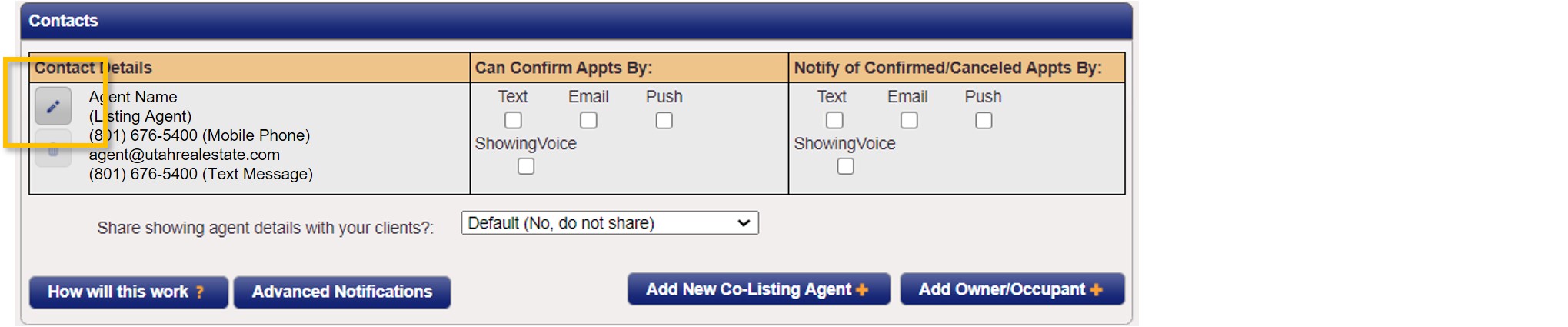
In the Contact Details section, select the Edit icon next to your contact information to open the Edit Listing Contact page.
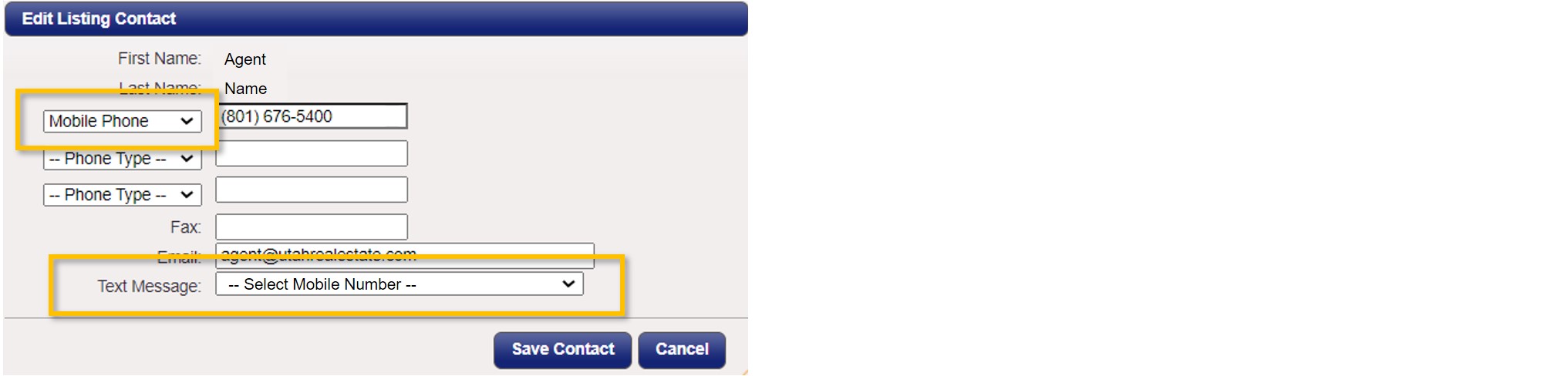
On the Edit Listing Contact page, identify which phone number is a mobile number. Next, use the Text Message drop down, and select the mobile phone number you would like to use to receive text messages. Last, click the Save Contact option.
If you need any assistance, please contact us at 801-676-5400 or support@utahrealestate.com.