How Can We Help?
Click here if you’d rather watch a short video
Is There a Simple Way to Request to Show Multiple Properties in Aligned Showings?
Requesting to show multiple properties through Aligned Showings is simple with the use of Aligned Showings Routes.
Creating a Route in Aligned Showings begins in the MLS.
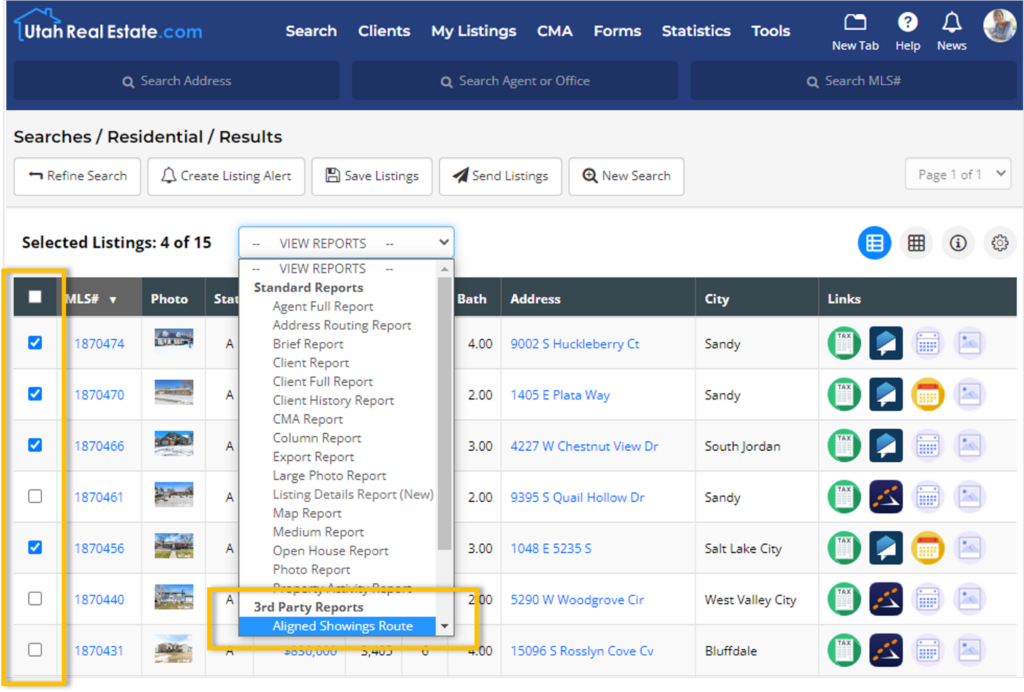
1. From the UtahRealEstate.com Search Results Page, select the listings you would like to add to a Route in Aligned Showings.
2. Next, select the Aligned Showings Route report from the Reports dropdown menu.
3. This will launch a confirmation window displaying which listings will be included in your Aligned Showings Route. In this window, select the blue Create Aligned Showings Route button. This will launch the Aligned Showings Route Creation process with the listings you selected in the MLS.
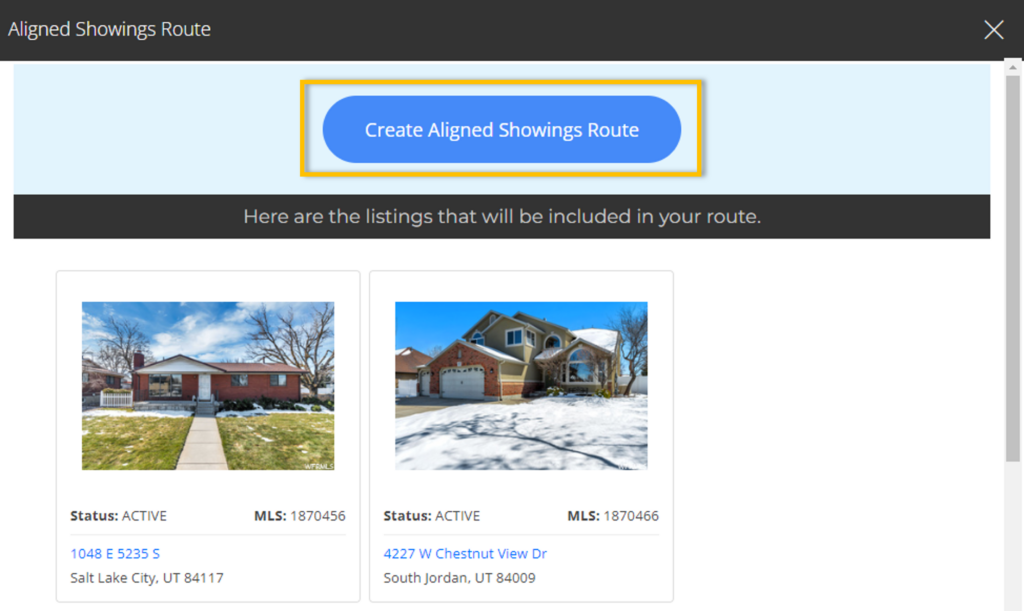
Note: Only listings available for showings using Aligned Showings can be included in a Route.
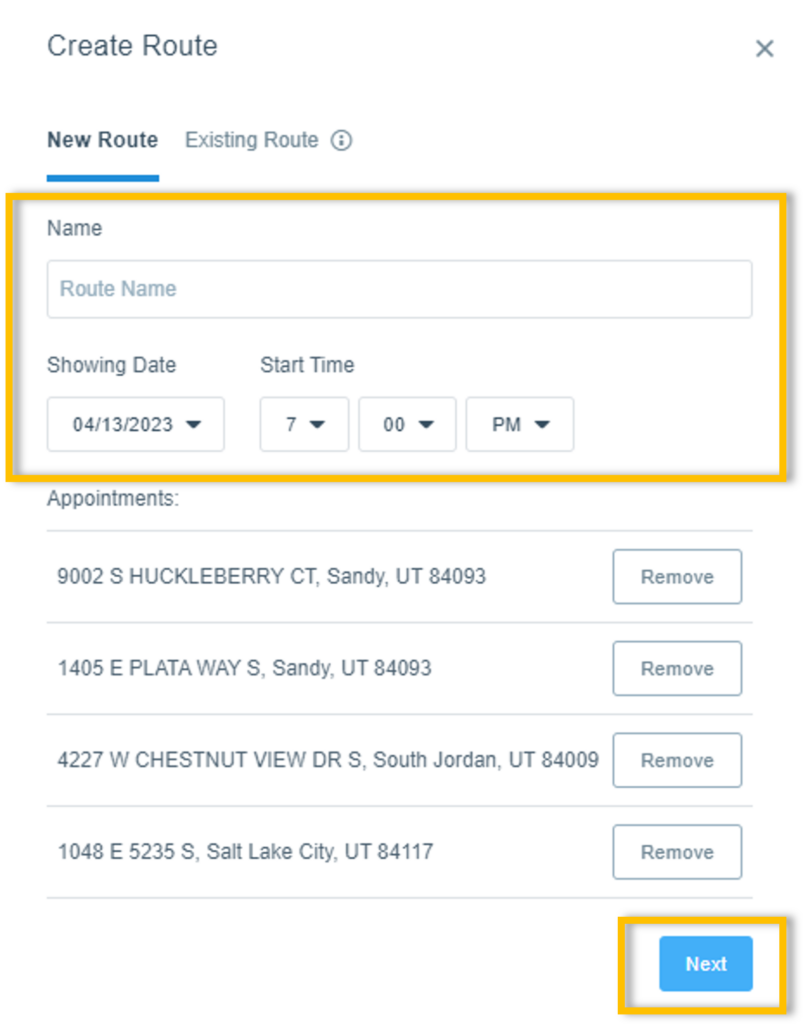
4. Select a Name, Date, and Start Time for your Route, and then select the Next button.
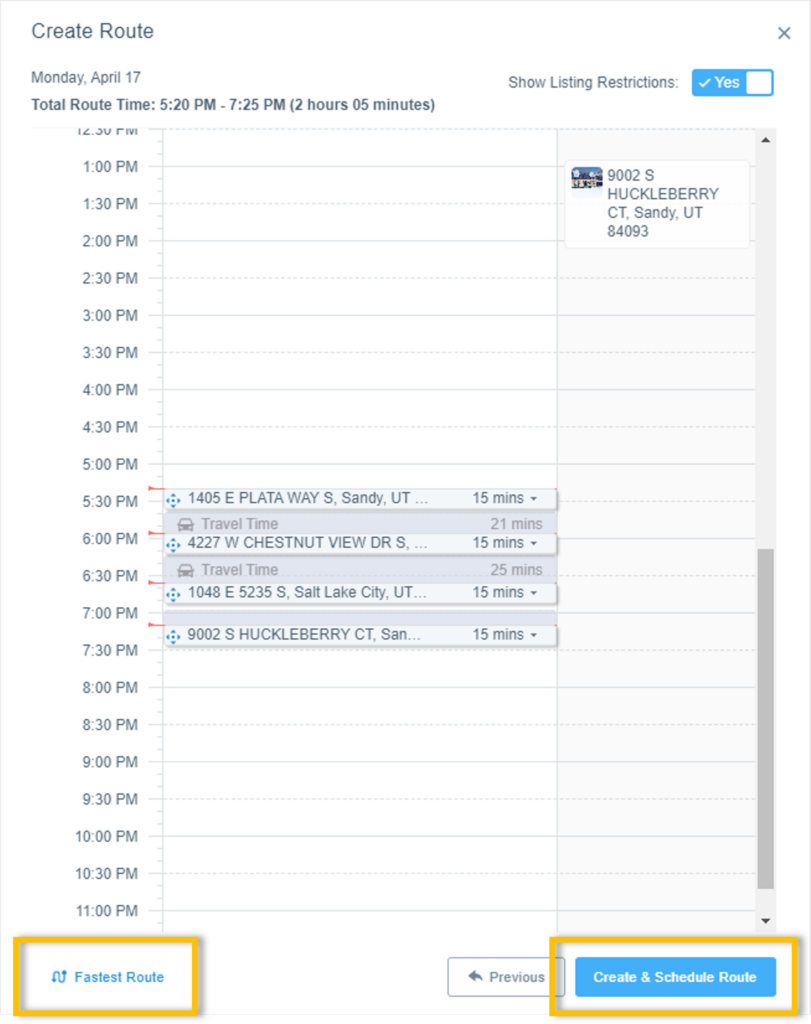
5. Next, select the start time and duration of each individual appointment. Options include:
- Clicking and dragging appointments to the time you prefer
- Automatic ordering of appointments based on shortest travel time using Fastest Route
6. Once appointments are arranged as you prefer, select the Create and Schedule Route button.
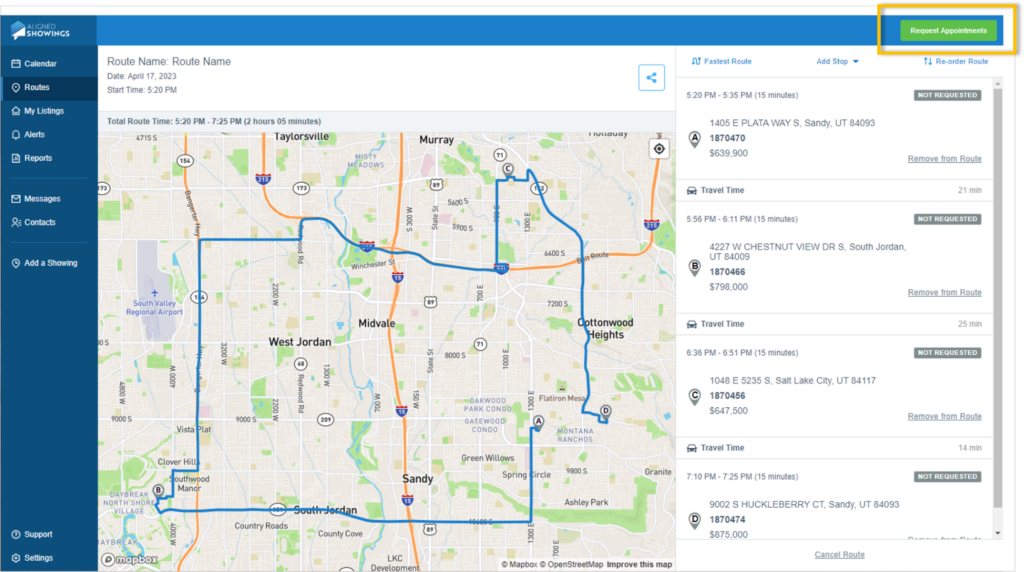
7. Review the Route you created. If no further changes are needed, select the green Request Appointments button in the upper-right-hand corner to request all showing appointments in the Route.
How Can I Check the Status of the Showing Appointments in My Route?
Whenever a showing request is approved or declined, you will receive a notification via your preferred Aligned Showings notification settings. Click here to learn more about notification preferences.
If you want to check the status of the showing appointments in your Route, visit the Calendar Tab, Messages Tab, or Routes Tab of Aligned Showings.
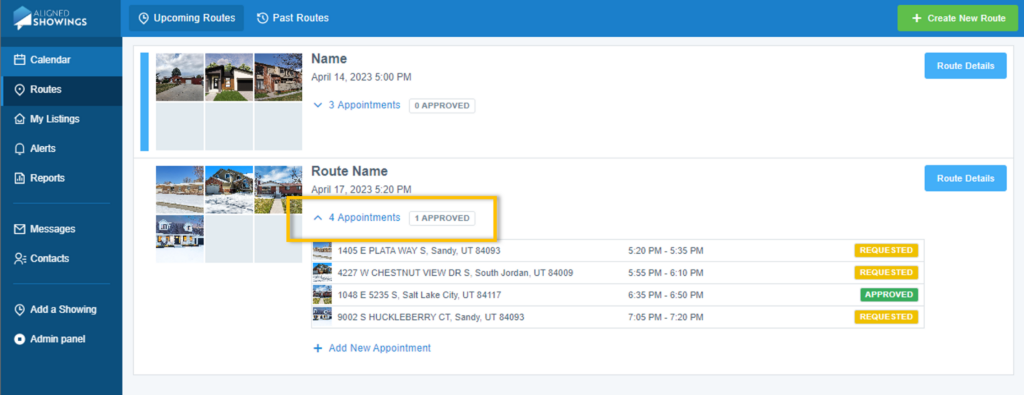
- Within the Routes Tab, Upcoming Routes are labeled by Name and are listed in chronological order by date.
2. Identify the Route by name.
3. Select the blue link which lists the number of appointments in the Route. This will display every appointment in the Route as well as the respective appointment status.
Are Routes Available in the Aligned Showings Mobile App?
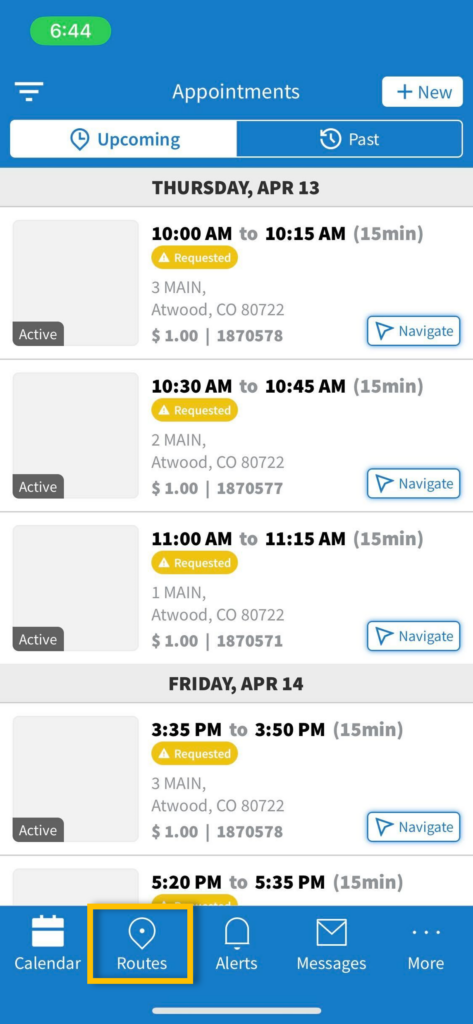
Yes. Routes are available in the Aligned Showings Mobile App.
If you do not see the Routes Tab in your Aligned Showings Mobile App, check the App Store (iOS) or the Play Store (Android) for any available app updates. If your Aligned Showings Mobile App is fully up-to-date, log out and then log back in to the Mobile App to see the Routes Tab.