
How Can We Help?
How to Change Your Showing Software Selection From ShowingTime to Aligned Showings
When adding a new listing to the MLS, there is a Showing Software Options step in listing input that allows you to choose which showing software you want to use to manage showings for your listing. The Showing Software Options setting can also be changed by editing a listing that has already been published to the MLS.
These instructions explain how to update a previously published listing and change the showing software to be used for that listing from ShowingTime to Aligned Showings.
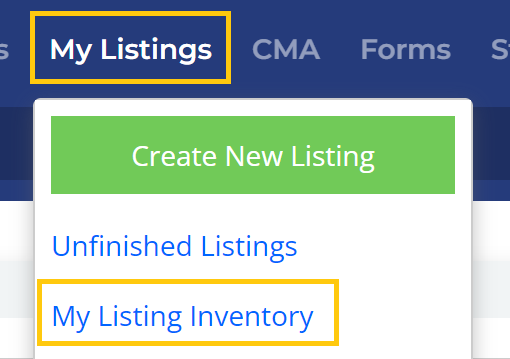
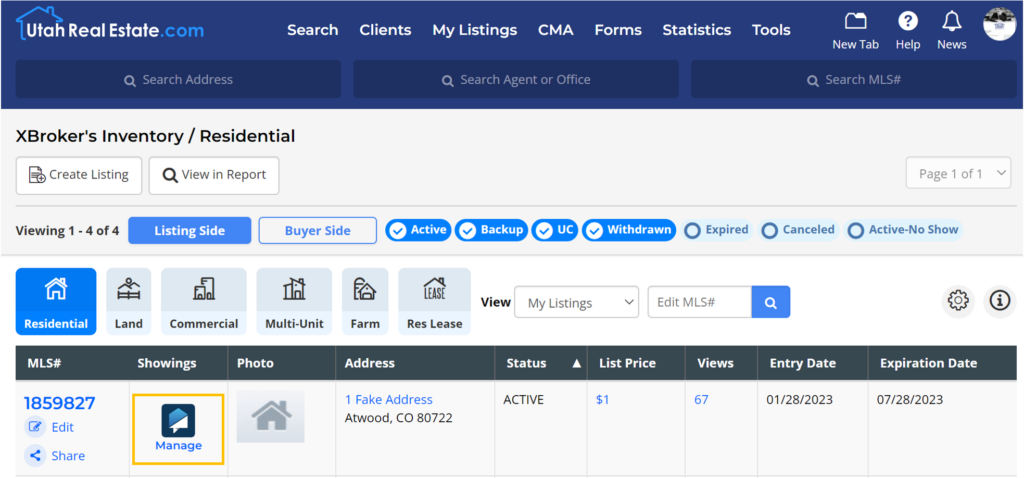
1. Click on My Listings from the main navigation menu within the MLS, then My Listing Inventory.
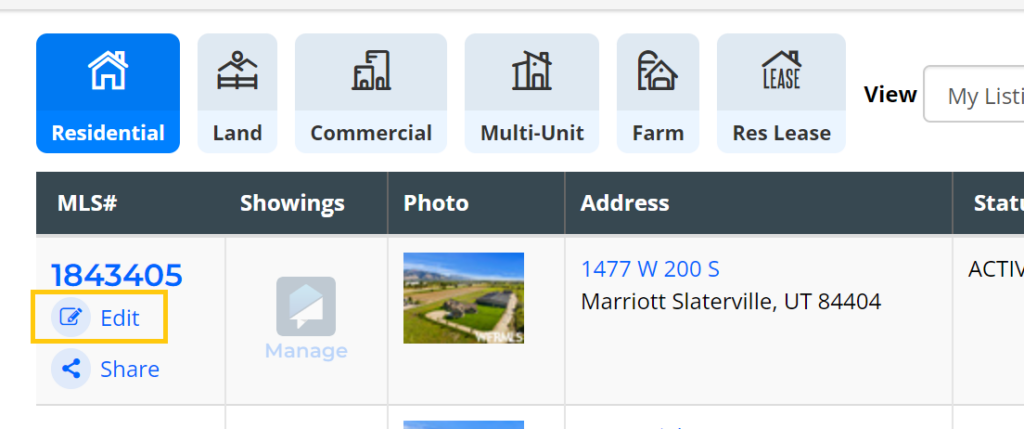
2. Click the Edit button next to your listing. Note: You must have listing input permissions in order to edit a listing. Please speak with your office if you do not have permissions to edit a listing.
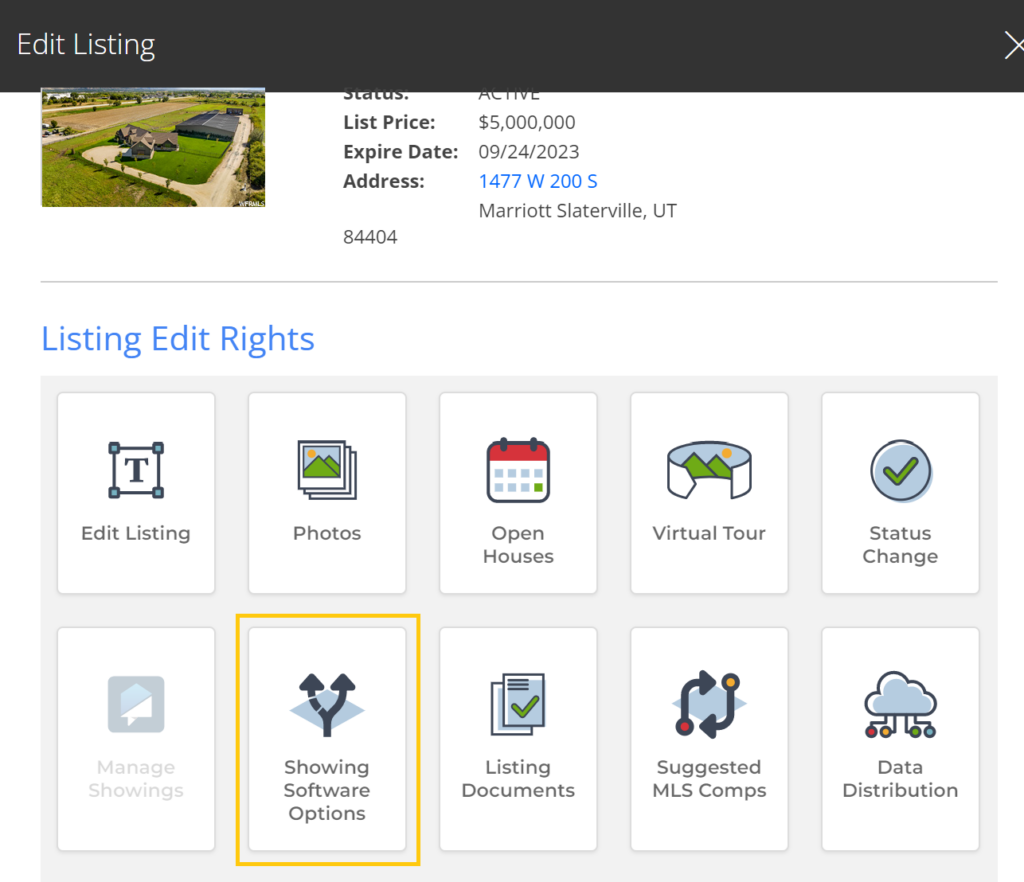
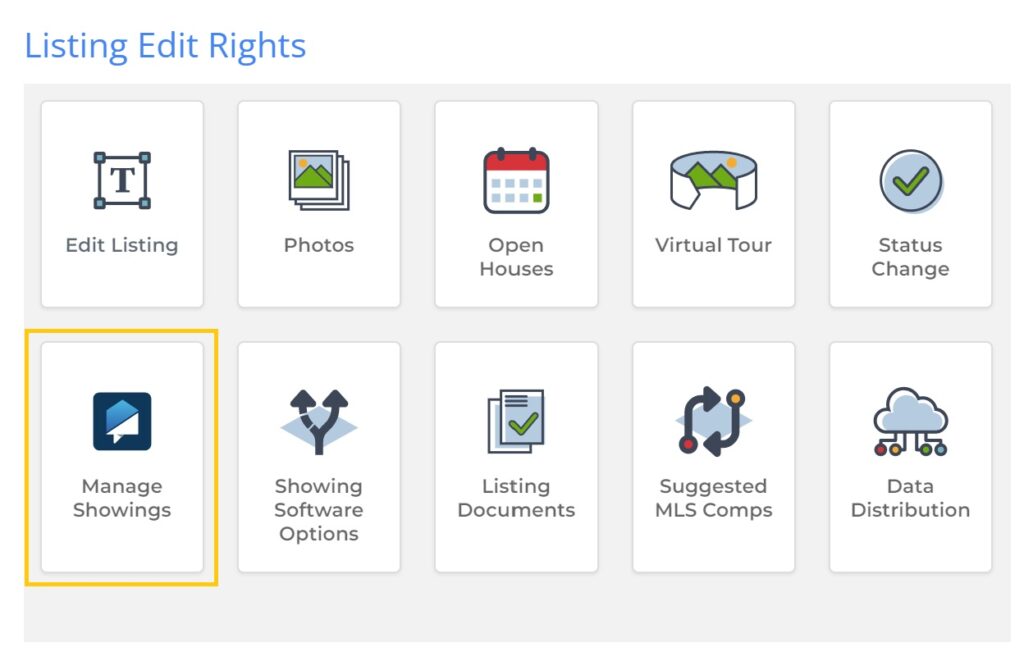
3. Click Showing Software Options.
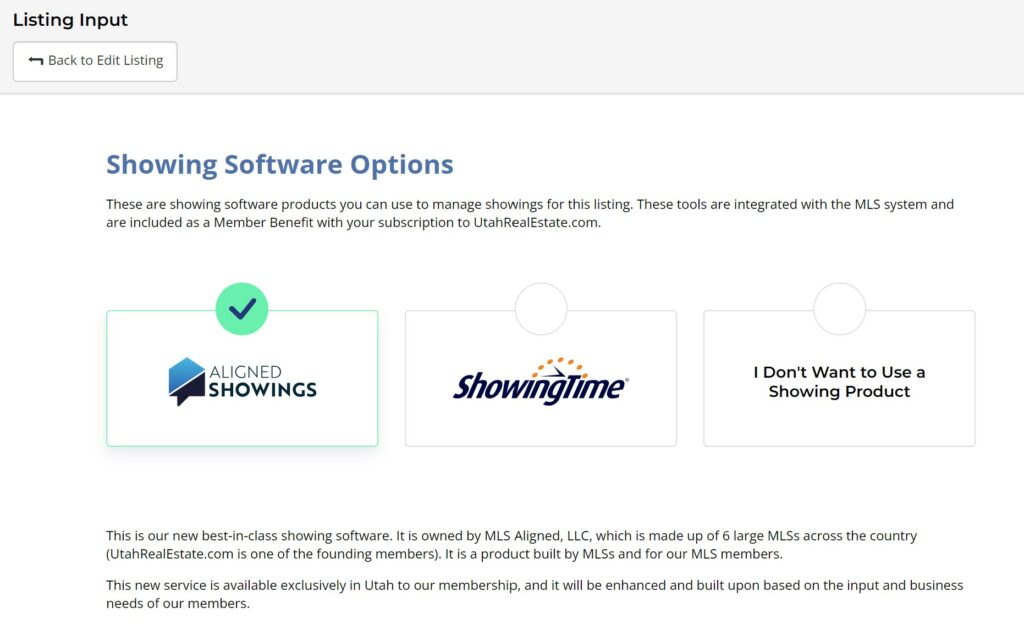
4. On the Showing Software Options page, click on the tile that says Aligned Showings. There is no need to click any “save” button, as this change takes effect immediatley. Click the Back to Edit Listing button to return to the previous page.
5. Last, if you want to edit the settings for how you want your listing shown using Aligned Showings (For example: To block out times when the property cannot be shown, allow or disallow overlapping appointments, etc.), click the Manage Showings button. This button appears on the listing edit page, as well as on the My Listing Inventory page (as shown below).
Once you have changed your showing software selection from ShowingTime to Aligned Showings, a Request a Showing button with the Aligned Showings logo will appear on your listing in the MLS, and that button is what other agents will click in order to request a showing appointment on your listing. Please know, once completing the steps above, it may take up to 10 minutes for the showing request button to appear on your listing.
If you need any assistance, please contact us at 801-676-5400 or support@realestatedata.com