
How Can We Help?
Can the Search Results Page be Customized?
The columns of information included on the Search Results page can be completely customized to display which columns you prefer in the order you prefer.
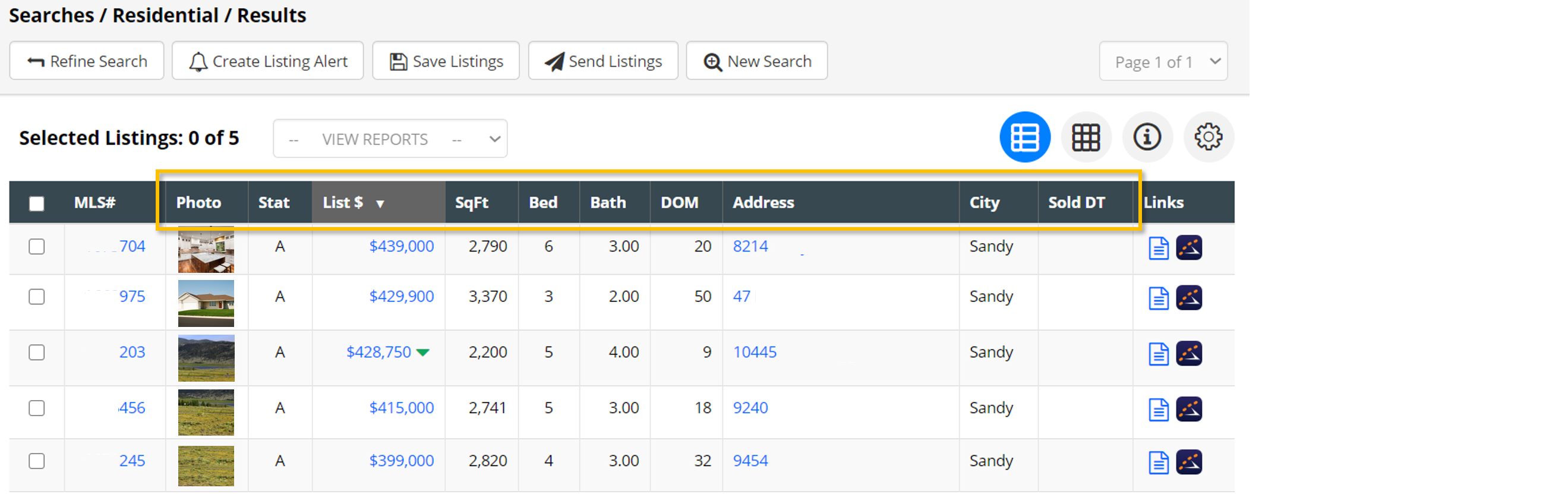
How do I Customize my Search Results Columns?
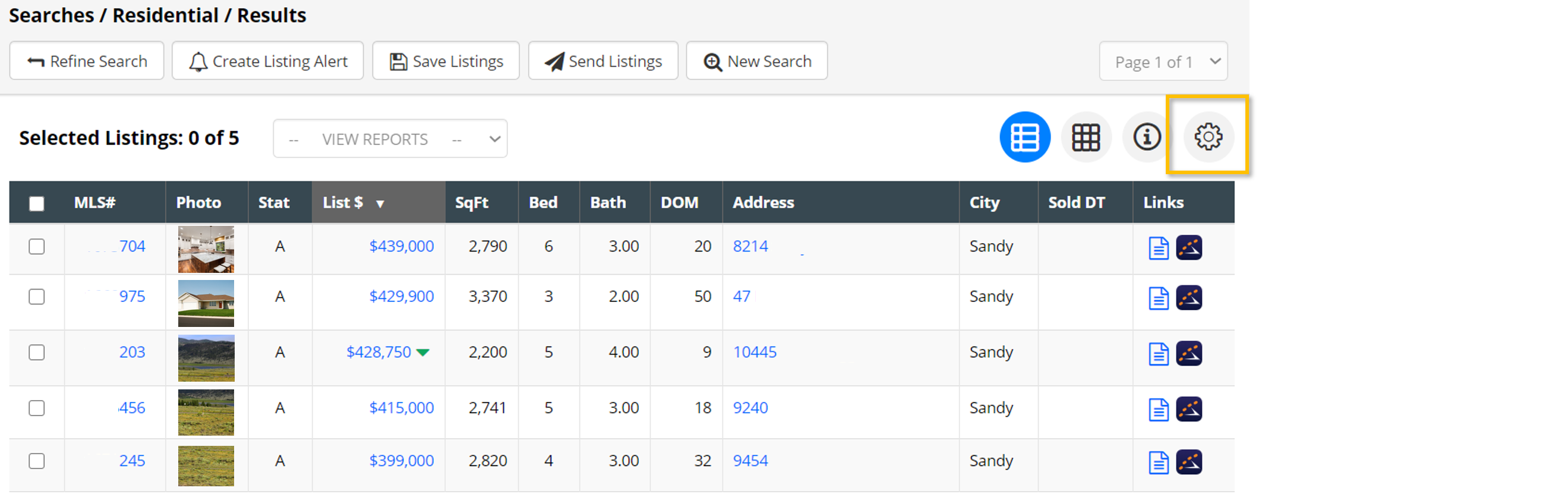
1. Click the settings icon on the search results page.
2. Select Change Column Display.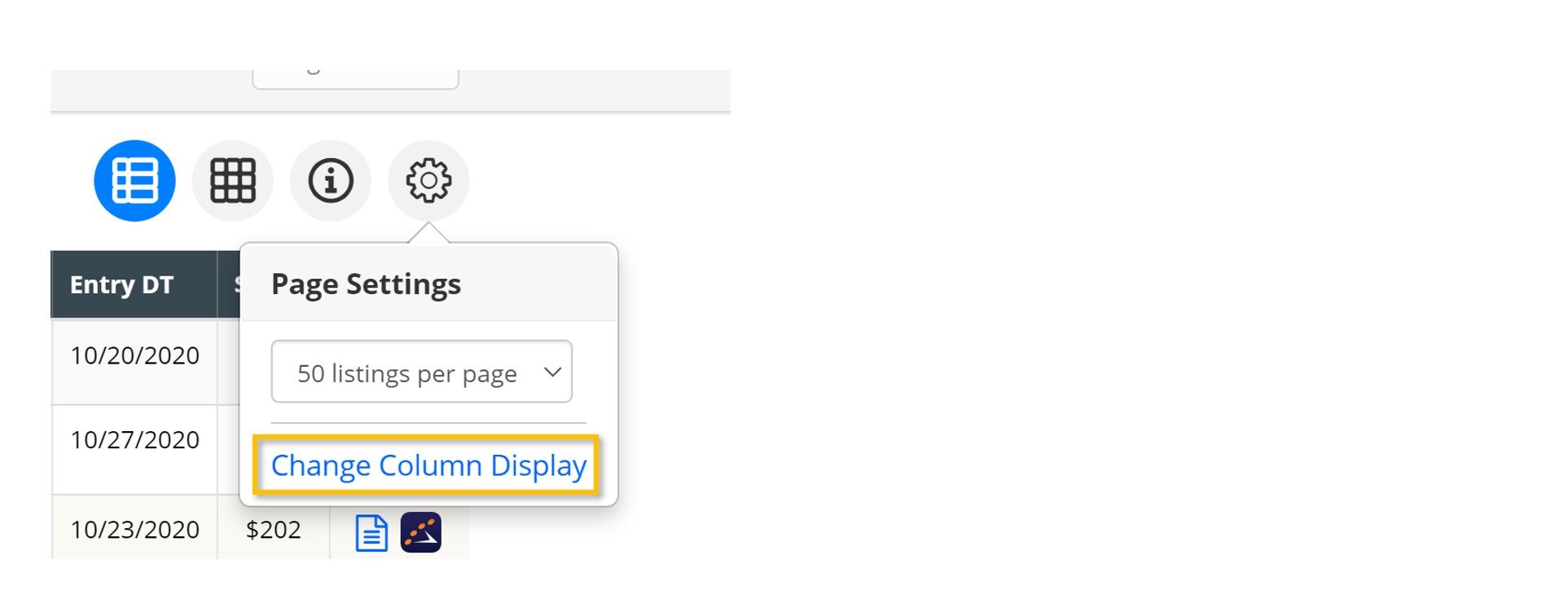
3. The Customize Columns pop-up will open. The Show section contains the data fields that will be displayed on the search results page. The Hide section contains the data fields that will be hidden from the search results page. To hide or show a field, simply drag and drop the field into the applicable section. Additionally, you can drag a field up or down to change the order.
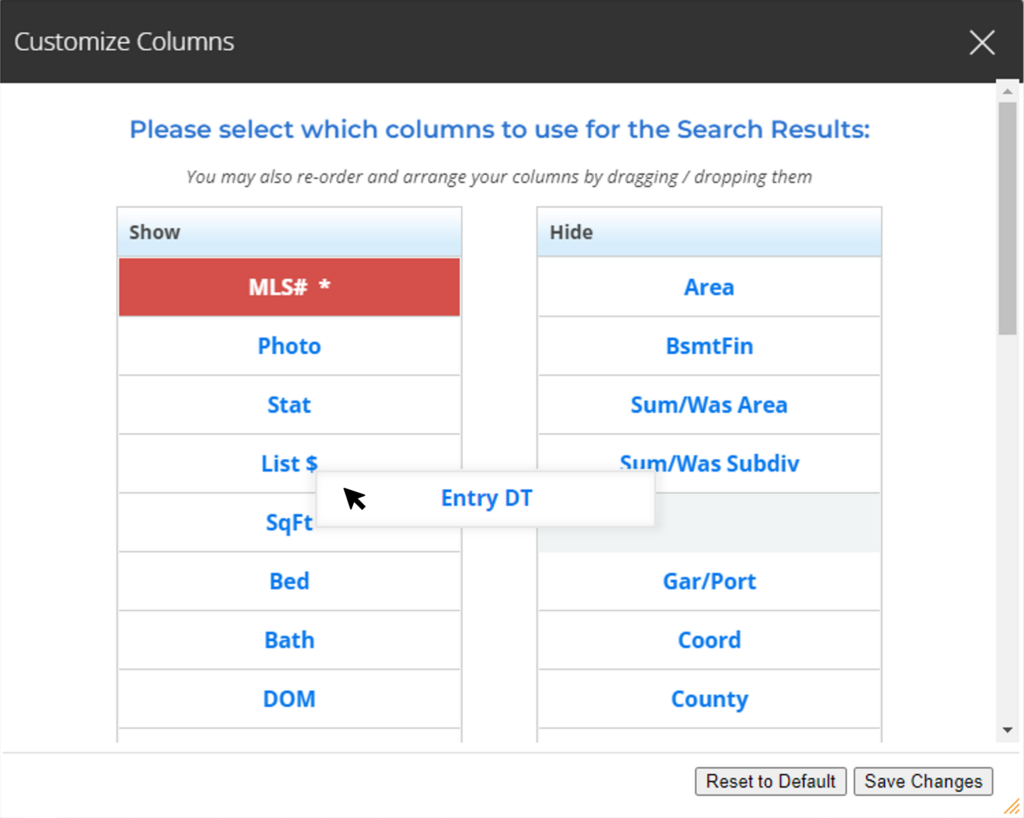
4. Make sure to select Save Changes once you have completed your customization. Once your changes are saved, the system will remember these settings each time you view the search results page.
Can I Reset my Customized Columns back to the Default?
The Reset to Default option (found in the bottom-right corner of the Customize Columns pop-up) will reset the display of the search result columns back to the default system settings.