
How Can We Help?
The Client Manger is one central location where you can:
- Add and edit your client contacts
- Check the status of Client Connection requests
- View the listings shared with your client via Listing Alerts and Send Listings
- View and share Property Lists with your Clients
- View the listings your clients have added to their Favorites
Key Features:
- Modernized user interface that consolidates all client-related MLS tools and features
- Red indicator appears above the “Clients” menu when a client has accepted the connection invitation, or when a client adds a Favorite listing.
- Clear indicators as to the connection status with each client.
- Dedicated page for viewing all listings that you’ve sent to your client, the date and time the listings were sent, and whether your client has viewed the listings.
- Client Favorites page, where you can view the listings that your client has added to their Favorites, then pull those listings into a report, make showing requests, etc.
- MLS# search within each Client page to discover when a specific listing was sent to a client
How Do I Access the Client Manager?
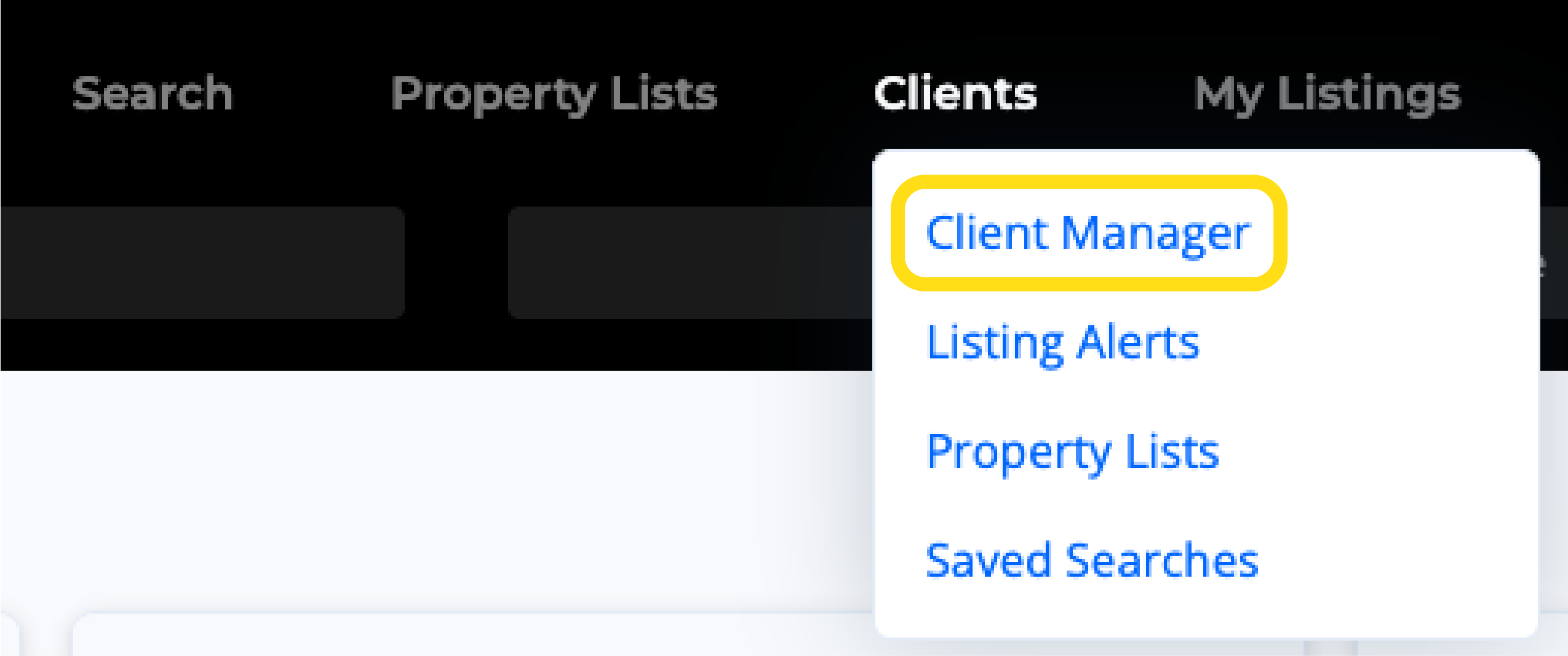
Click on Clients from the main navigation menu within the MLS, then select Client Manager.
How Do I Add a New Client?
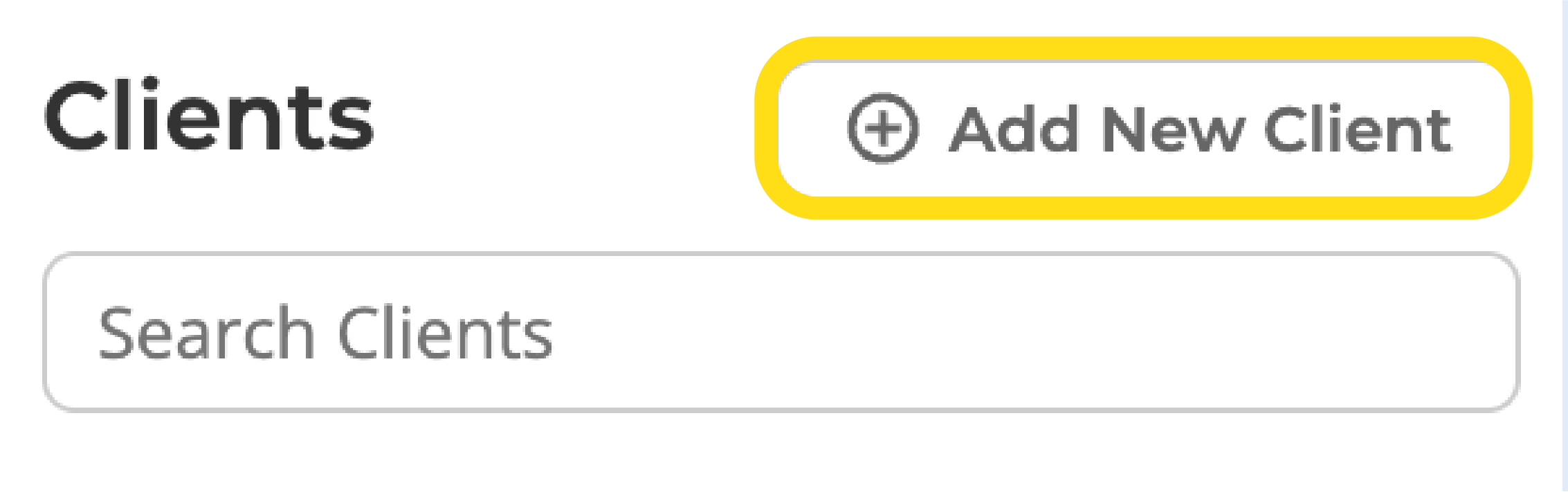
To add a new client to your Address Book (which is now part of the Client Manager), click the Add New Client button found in the Clients panel on the left side of the Client Manager.
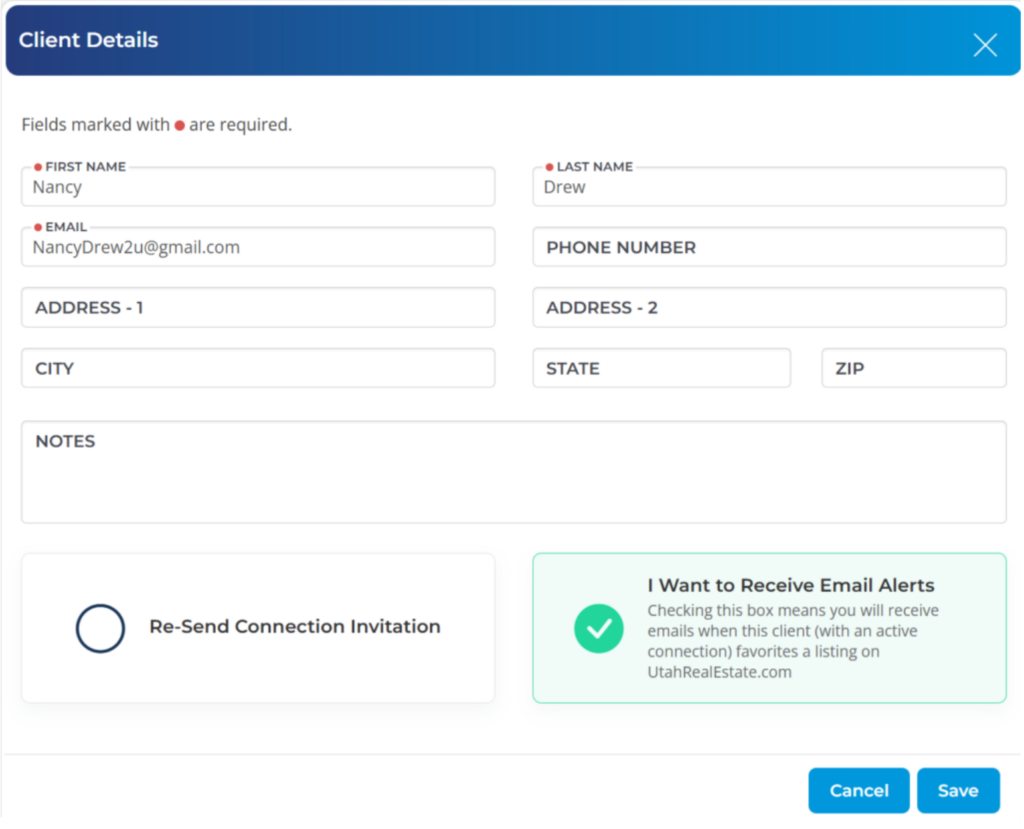
Make sure the Send Connection Invitation button is selected. This will send your client an email with instructions on how to create a consumer account and how to approve your connection request.
How Do I Edit My Client’s Information?
Open the Client Manager, and click on the name of your client on the left side of the page. Then click on the more options button (three dots) in the top right corner, then click on Edit Client.

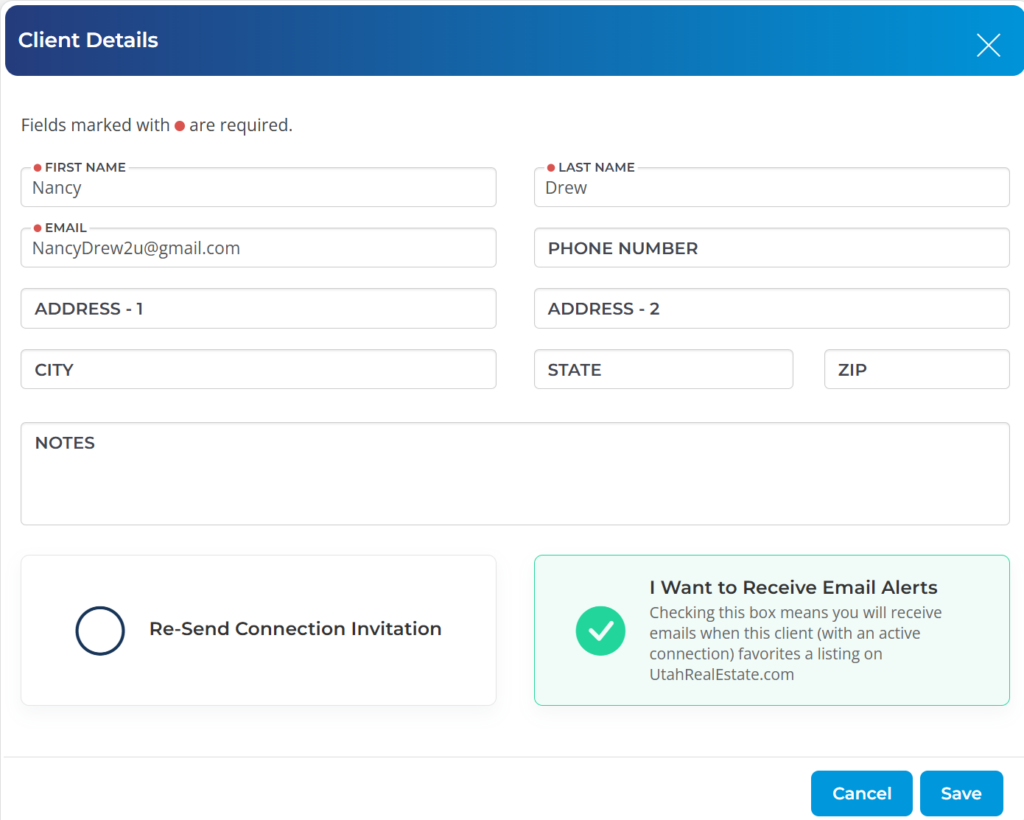
Once there, update any information needed for this client and make sure to click Save when finished.
How Do I Check the Status of a Client Connection Request?
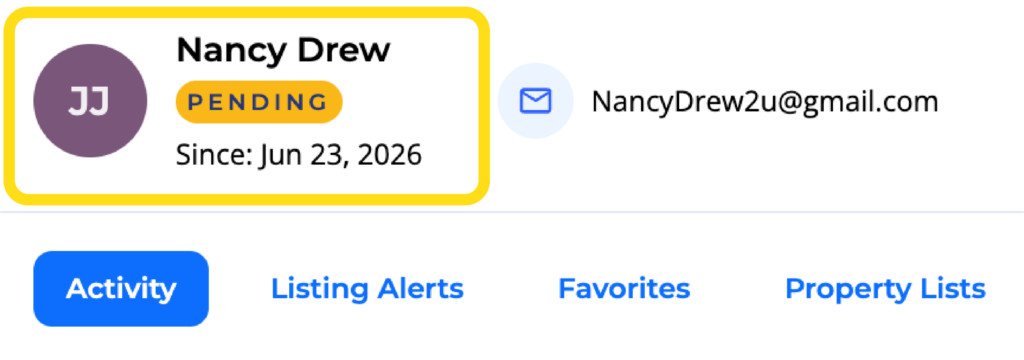
Click on a specific client from the Clients panel on the left side of the screen within the Client Manager. The connection status for that client will be displayed directly beneath the client’s name. The status will either show as “Connected,” “Pending,” or “Not Sent” which mean the following:
- Connected: The client has created a consumer account and accepted your connection request. You can now send Listing Alerts to this client, view properties favorited by your client, and view other client-related activity.
- Pending: You have sent a connection invitation to your client, however, they have not created an account and/or they have not accepted your client connection request (which they can do within their account once they have created a consumer account.).
- Not Sent: You have not sent this person a client connection request. Click the more options button when viewing this client within the Client Manager, and you’ll see an option to Send Connection Request.
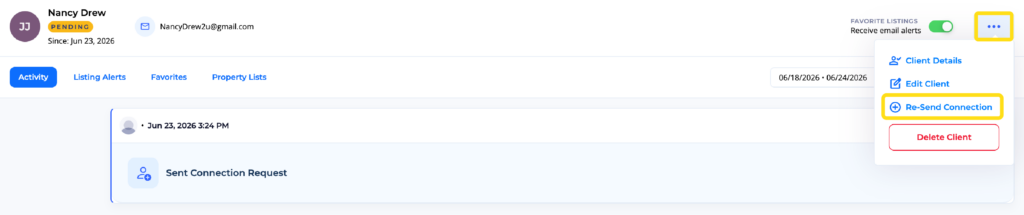
If your client connection is Pending, and you need to resend your client connection request, click the more options button (three dots) in the top right corner, and select Re-Send Connection. What this will do is send your client an email with a link they can click in order to create an account. Once they have created an account and are logged in to that account, they will prominently see an option to approve your client connection request.
What Information is Shown on the Activity Page?
The Activity page within the Client Manager shows the following information:
- When a connection request has been sent, and when your client confirms the connection.
- History of listings sent to your client (either via a Listing Alert or manually sent listings using the Send Listings feature on the MLS).
- When your client adds a Favorite listing.
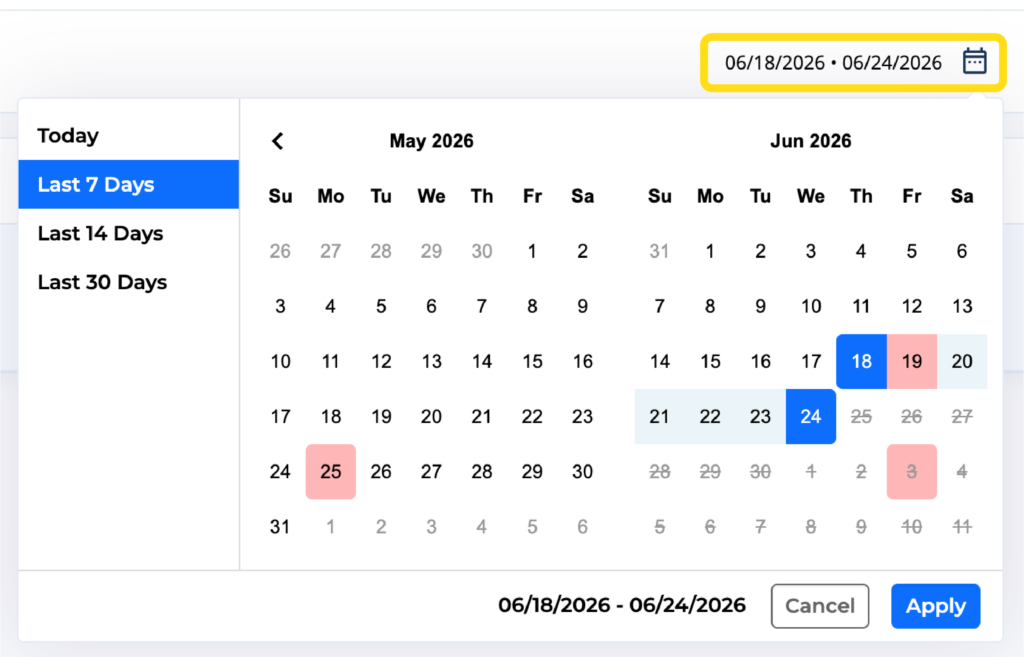
Please note, this page displays the last 7 days of activity by default. To adjust the time span on the Activity page, click on the dates field at the top right. This page will display up to 90 days of activity.
How Do I Turn On Notifications for My Client’s Favorites?
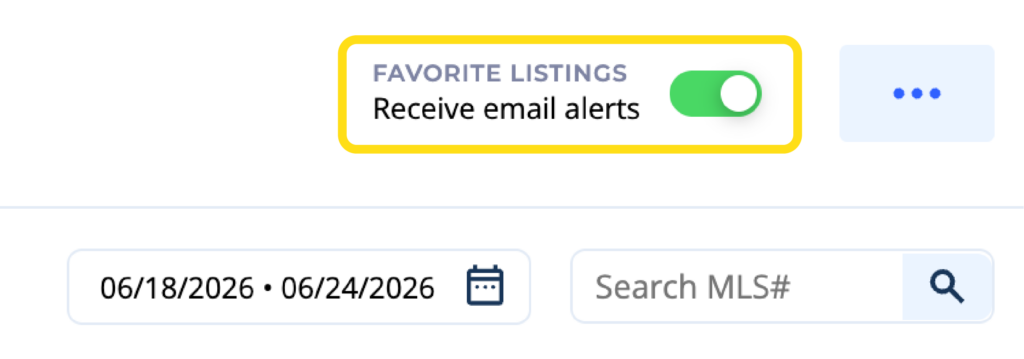
Open the Client Manager, and click on the name of the client on the left. Once there, click on the toggle at the top right. When the toggle is in green, you will receive notifications when your client adds a favorite listing.
What are Activity Alerts (the red button that appears by the “Clients” menu) ?
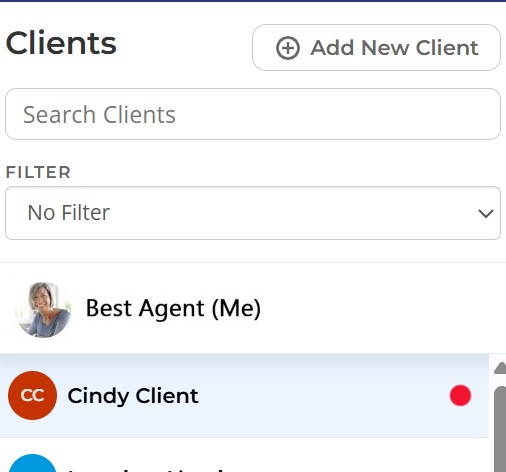
Activity alerts make you aware when (1) a client has accepted a connection invitation request, and (2) a client has favorited or saved a property. When you have a new activity alert, a red dot will be shown next to the Clients menu option on the MLS.
Additionally, when you go into the Client Manager, a red dot will appear next to the client’s name.
Can I See When I Sent a Particular Listing to My Client?
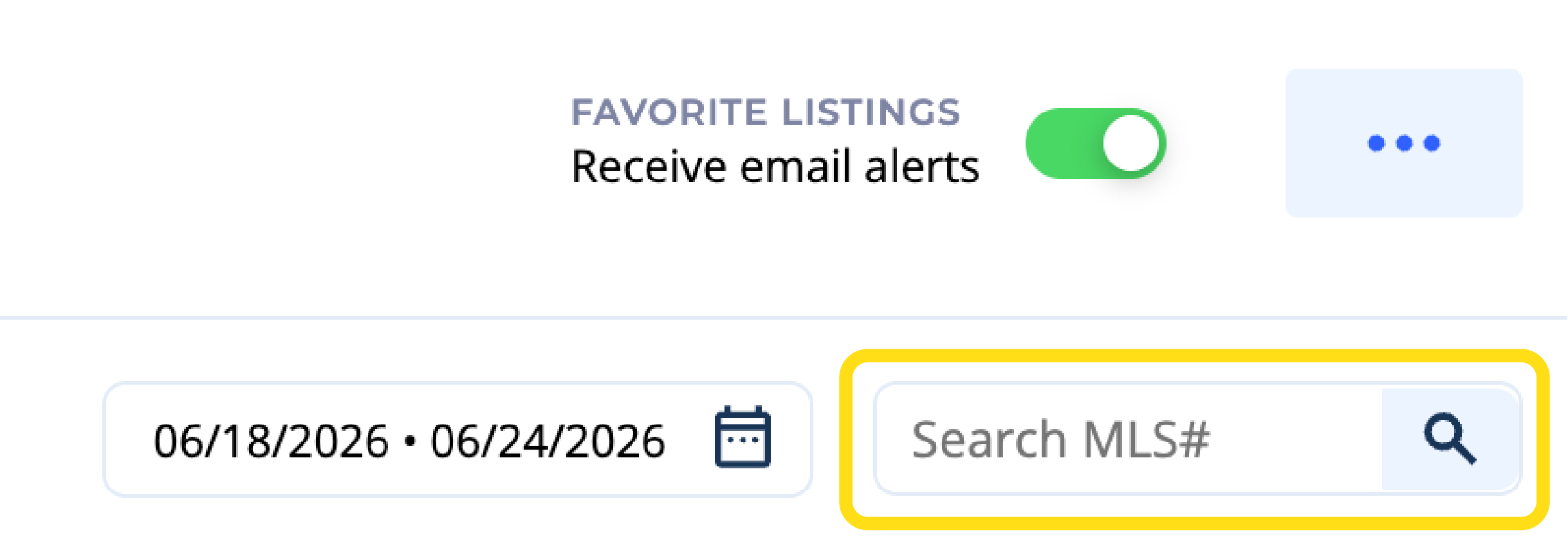
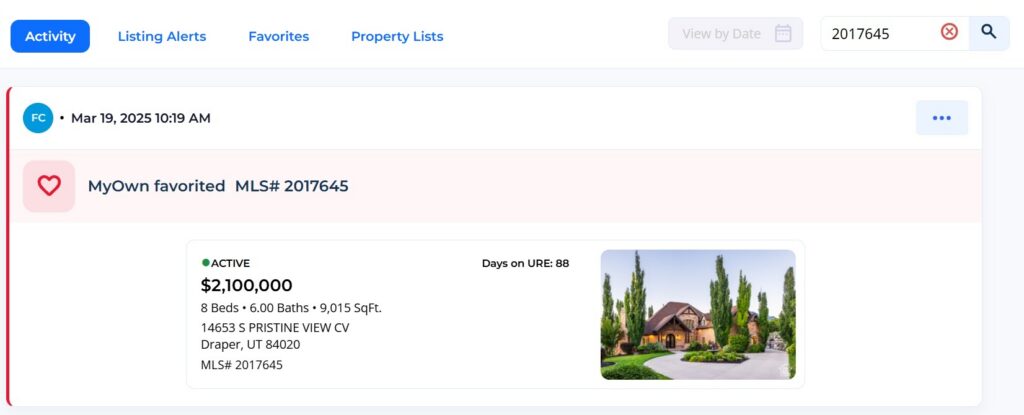
Use the new Search MLS# box on your client’s page to see if you have sent that listing to your client, and if the client has added that listing as a Favorite. This will search for all activity over the last 90 days, and all of your clients’ favorites.
Can I See Listing Alerts I’ve Sent to Myself?
At the top of the Client Manager, your name is shown at the top of the list.
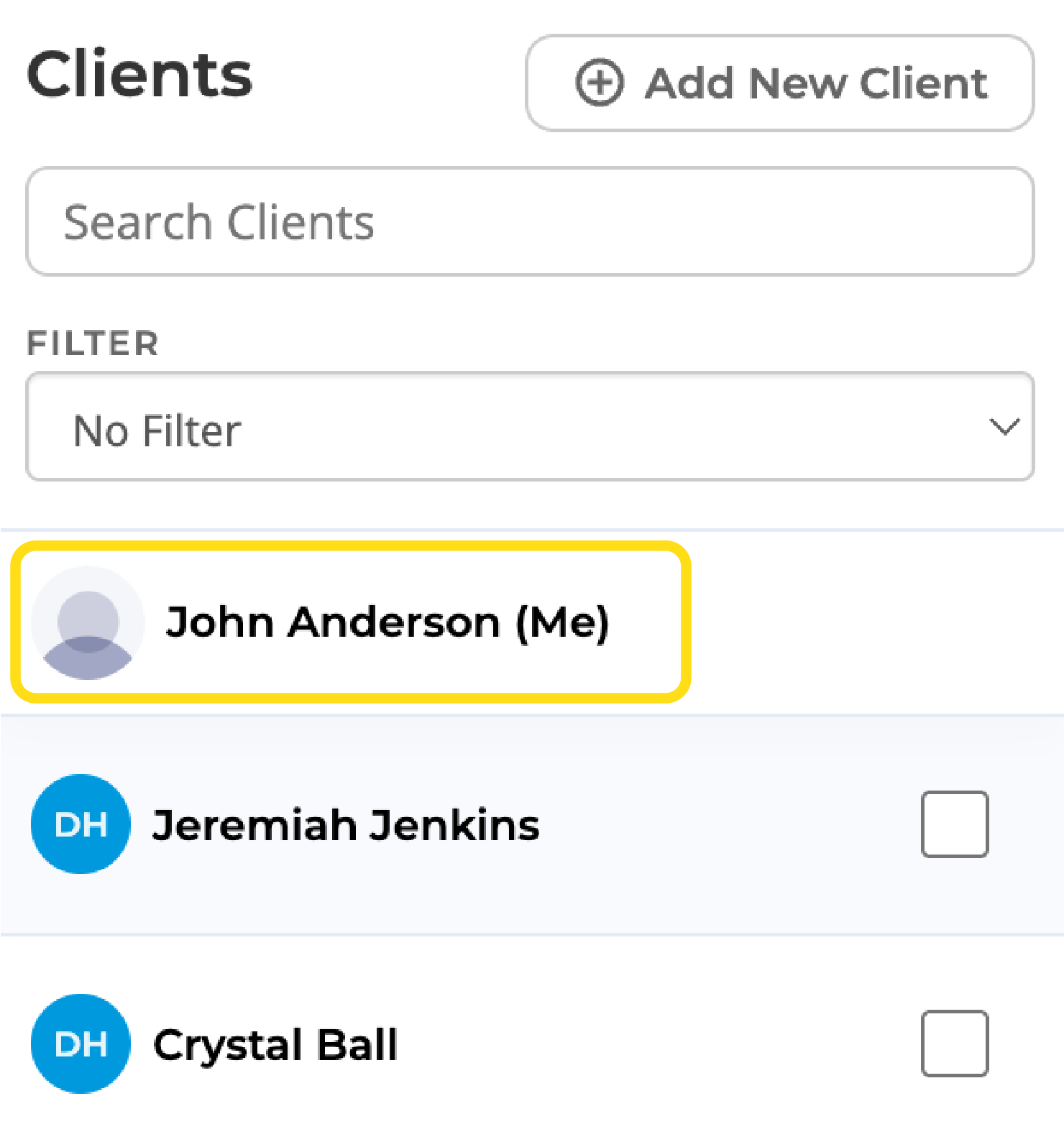
Click on your name to view the Listing Alerts you have sent to yourself (without a client associated).
Sharing Property Lists With Your Client
You can now associate and share your Property Lists (formerly Saved Listings) with your client. To do so, access your Property Lists, then edit the Propery List and add your client. You will see an option to Share the Property List with your client from this section. You can find instructions here.